Starting and Stopping Failover Tests
The following topic is described in this section:
You can test specific VMs in a VPG, a single VPG or multiple VPGs to make sure that if an actual failover is needed, the failover will perform as expected.
By default, test virtual machines are started with the same IPs as the protected machines in the protected site. This can create clashes so Zerto recommends ensuring that different IPs are assigned to the virtual machines when they start, by configuring virtual machine NIC properties in the VPG. For details, see Protecting Virtual Machines from a vCenter Server .
If you have defined the new virtual machines so that they are assigned different IPs, the re-IP cannot be performed until the new machine is started. Zerto changes the machine IPs and then reboots these machines with their new IPs.
|
Note:
|
You can initiate the failover test from either the protected site or recovery site. You cannot select specific VMs in a VPG for failover test if the protected site is down. |
To test failover:
|
1.
|
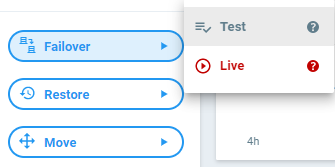
In the left pane of the Zerto User Interface, click Failover and then select Test. |
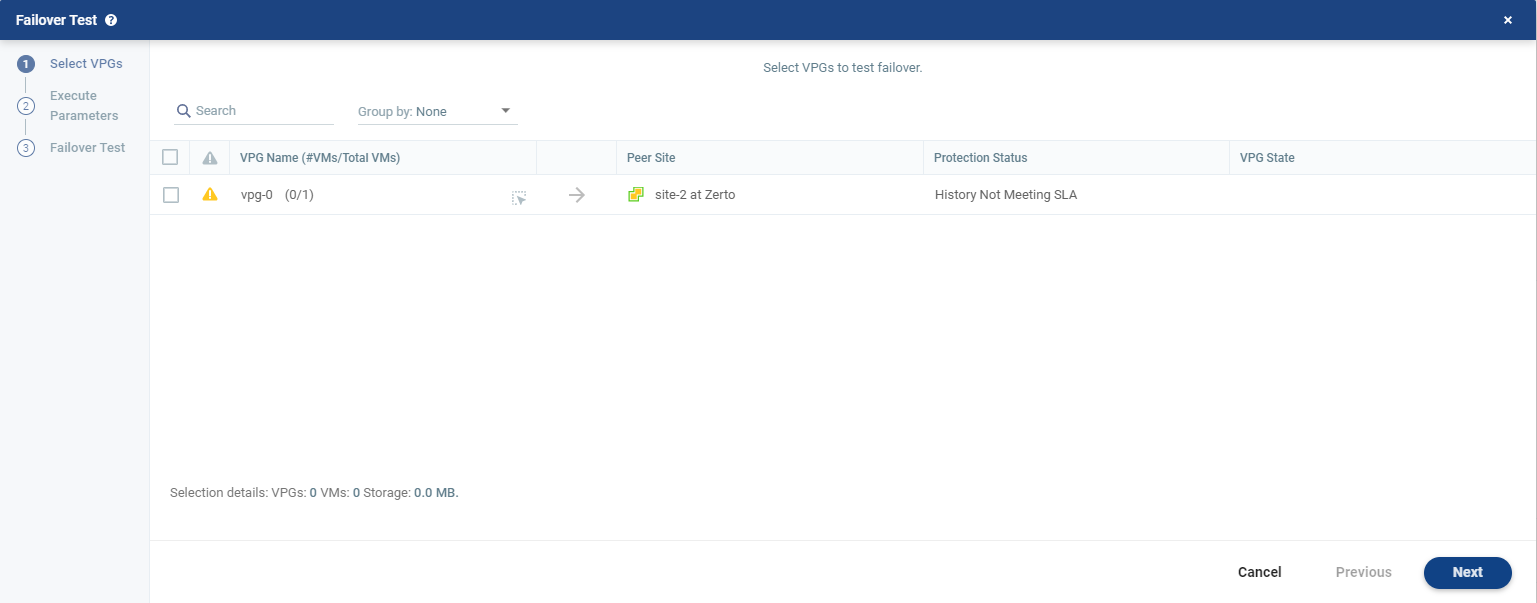
The Failover Test wizard is displayed.
|
2.
|
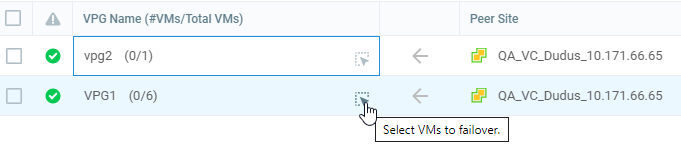
Select the VPGs to test. By default, all VPGs are listed. |
The arrow shows the direction of the process: from the protected site to the peer (recovery) site.
You can select specific VMs to test.
|
•
|
Selecting specific VMs in a VPG to failover is not supported when replicating from a vCD site. |
|
•
|
VM selection is not available when there is only one VM. |
|
a.
|
To select specific VMs in a VPG, click the icon next to the VPG. |
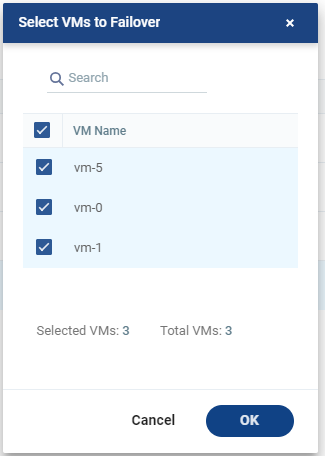
The Select VMs to Failover dialog is displayed. By default, all VMs are selected when the VPG is selected.
The Execution Parameters step is displayed.
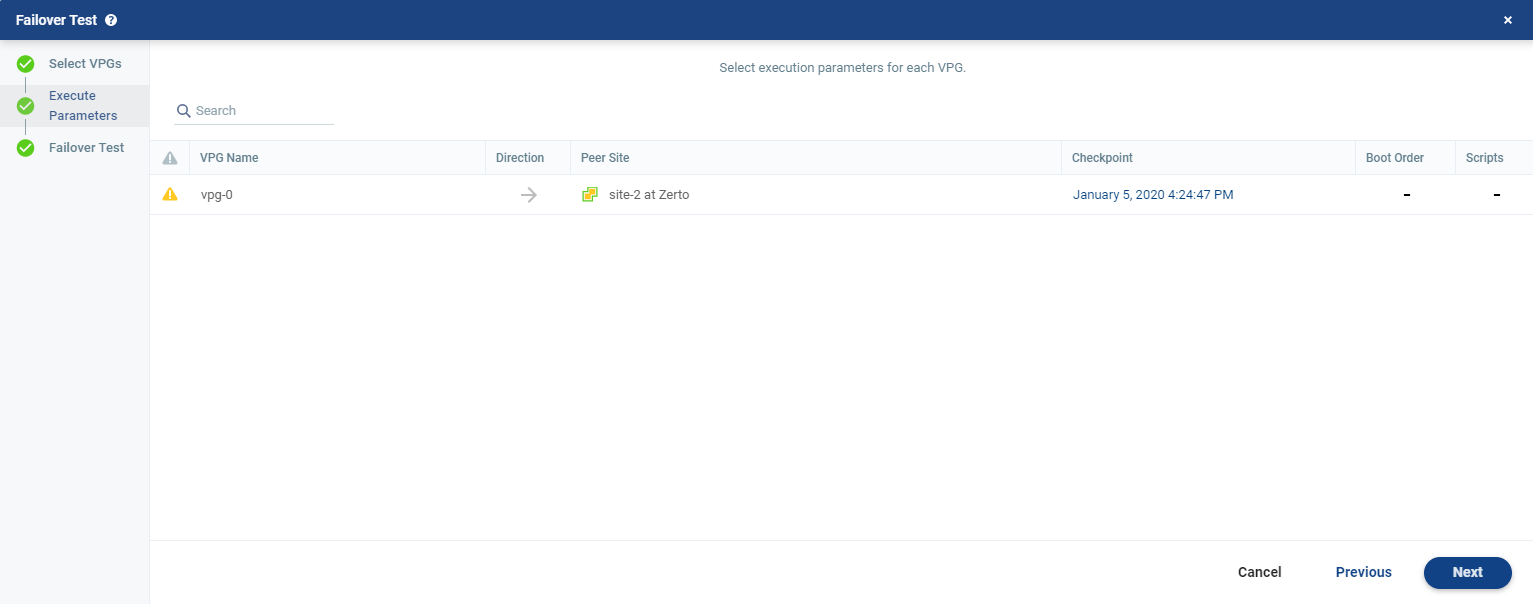
You can select the checkpoint to use for the recovery and see if a boot order and scripts are defined for the VPG.
To select the checkpoint to use for the test:
|
1.
|
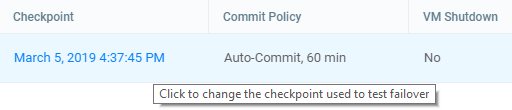
By default, the last checkpoint which was added to the journal is displayed in the Checkpoint column. |
|
•
|
Either use this checkpoint, or select a different one. |
|
•
|
To select a different checkpoint, click the checkpoint link. |
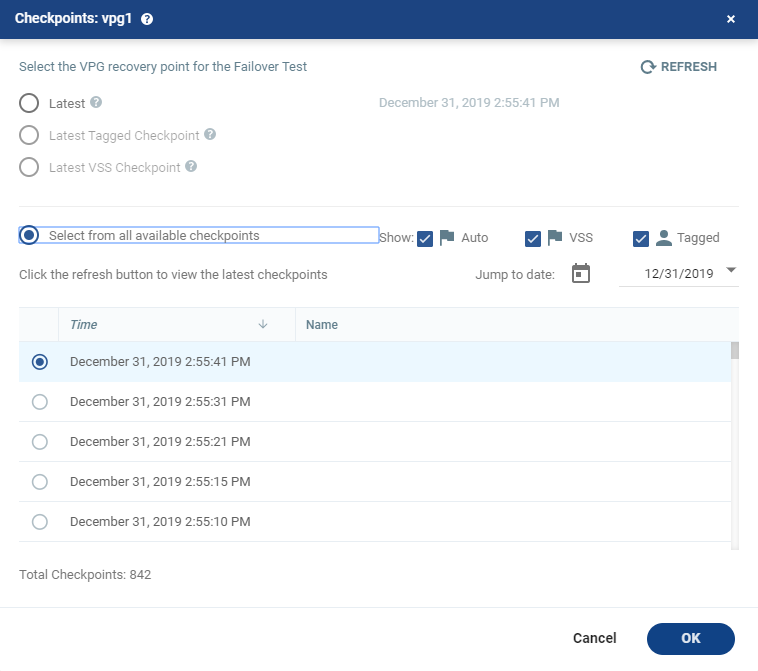
The Checkpoints window displays a list of the VPGs’ checkpoints.
R
Tip: The refresh button is initially grayed out and is enabled for clicking after 5 seconds. It is also grayed out for 5 seconds after being clicked, before being re-enabled.
|
•
|
A reminder, Click the refresh button to view the latest checkpoints is displayed 10 seconds after the refresh button is clicked to remind the user that there is a new Latest Checkpoint. |
|
•
|
If the user has scrolled to, and selected, a checkpoint anywhere in the checkpoints list, clicking the refresh button will automatically return the user to the selected checkpoint in the list. |
|
2.
|
Filter the list of checkpoints using the following options: |
|
•
|
Latest: Recovery is to the latest checkpoint. This ensures that the data is crash-consistent for the recovery. |
When selecting the latest checkpoint, the checkpoint used is the latest at this point in time.
If a checkpoint is added between this point and starting the failover, this later checkpoint is not used.
|
•
|
Latest Tagged Checkpoint: The recovery operation is to the latest checkpoint added in one of the following situations: |
|
•
|
When a failover test was previously performed on the VPG that includes the virtual machine. |
|
•
|
When the virtual machine was added to an existing VPG after the added virtual machine was synchronized. |
|
•
|
Latest VSS Checkpoint: When VSS is used, the clone is to the latest VSS snapshot, ensuring that the data is both crash-consistent and application consistent to this point. |
The frequency of VSS snapshots determines how much data can be recovered. For details about VSS checkpoints, see VSS - Deployment and User Guide, in the section Ensuring Application Consistency – Adding Checkpoints.
|
•
|
Select from all available checkpoints: Displays a complete list of all available checkpoints, including all the latest. |
By default, this option displays all checkpoints in the system. You can display Auto, VSS or Tagged checkpoints, or any combination of these.
|
3.
|
Select the checkpoint, then click OK. If the selected VMs were not protected when the selected checkpoint was taken, a warning will appear informing the user that these VMs cannot be recovered. If none of the selected VMs cannot be recovered, an error is displayed. |
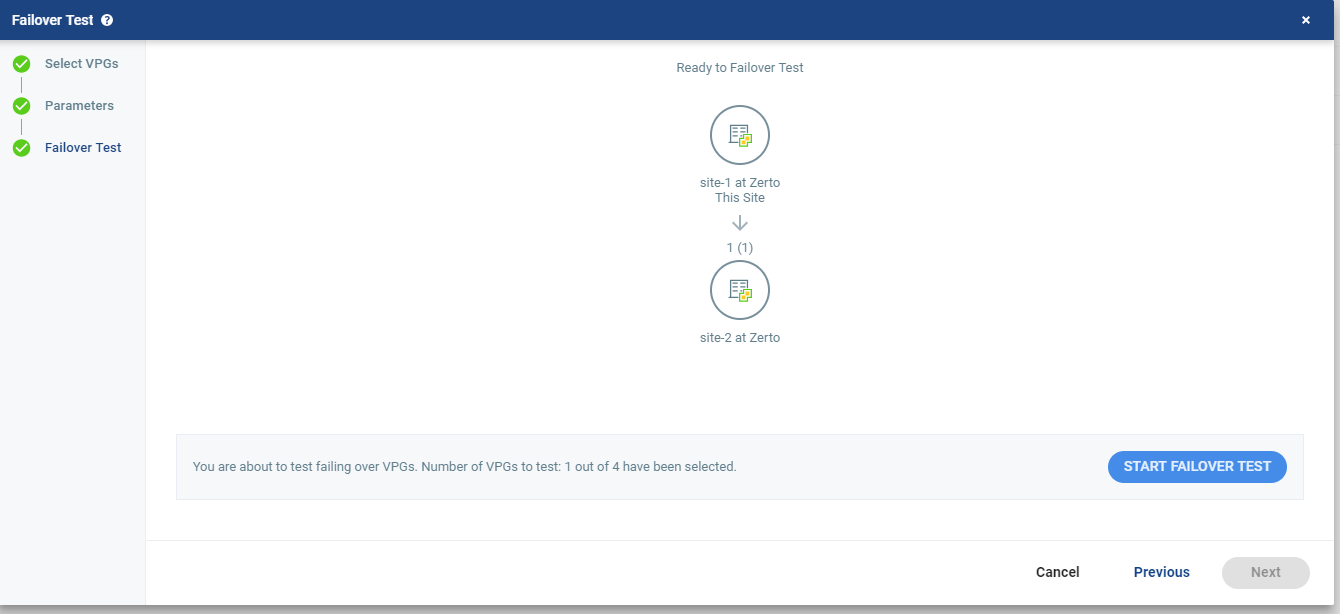
The Failover Test step is displayed. The topology shows the number of VPGs and virtual machines being tested to failover to each recovery site.
|
5.
|
To start the test, click START FAILOVER TEST. |
The test starts for the selected VPGs. The test begins with an initialization period during which the virtual machines are created in the recovery site.
See also: