Reconfiguring the Microsoft SQL Server Database Used by the Zerto Virtual Manager
| 1. | Click Start > Programs > Zerto > Zerto Diagnostics. |
The Zerto Diagnostics menu dialog is displayed.
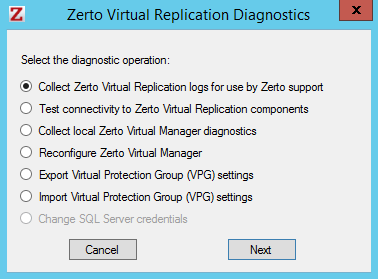
| 2. | Select the Change SQL Server Credentials option and click Next. |
The installation settings for the SQL Server are displayed. Change the IP and username and password if necessary.
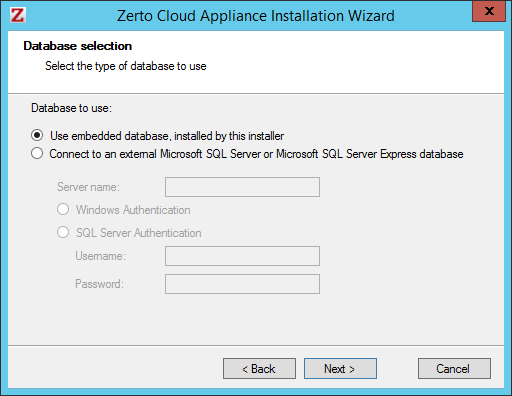
Server Name: The domain name and server instance to connect to, with the format <server_name>\<instance_name> or <Server_IP>\<instance_name>.
Specify either of the following authentication options:
Windows Authentication: Use Windows authentication. This option is only enabled if a specific service user account was specified in the previous Service User dialog, in which case the service account name and password are used.
SQL Server Authentication: Use SQL Server authentication.
User Name: The user name for SQL Server database.
Password: A valid password for the given user name.
| 3. | Click Next to the end of the wizard and then click Finish. |
| 4. | The Zerto Virtual Manager service is restarted using the new credentials. |