Performing a Custom Installation
You can install Zerto providing specific details including the ports that will be used by Zerto and full contact details.
Before you Begin:
■ Make sure you deployed Zerto Cloud Appliance.
To perform a custom install of Zerto:
1. Run the Zerto Installer for Microsoft Azure.
2. Follow the wizard through the installation until the window for the Installation Type and select the Custom Installation option.
3. Click Next.
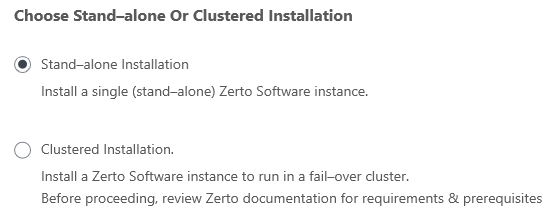
The Choose Stand-alone Or Clustered Installation window appears.
4. Select Stand-alone Installation, then click Next.
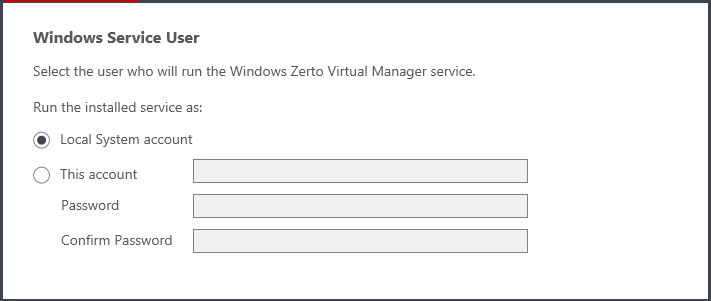
The Windows Service User window is displayed.
5. Select either Local System account or This account:
■ Local System account: Use the Local System account to run the Zerto Virtual Manager service, which is installed as part of Zerto. The Local System account has unrestricted access to local resources.
■ This account: Use a specific account as the user account to run the Zerto Virtual Manager service, which is installed as part of Zerto. The account must have unrestricted access to local resources.
■ Password: The password to use to run the service under the specified account.
■ Confirm Password: Confirmation of the password.
Note: The account under which the Zerto Virtual Manager service runs must be able to authenticate against the Azure Active Directory Server if login authentication to the Zerto Virtual Manager is to be handled by Azure Active Directory.
6. Click NEXT.
The Database Type window is displayed.
Information required by Zerto is stored in a database embedded in the Zerto Virtual Manager. This information includes details of the site where the Zerto Virtual Manager is installed, details of the Virtual Replication Appliance and the volumes it uses, and points-in-time recorded for recovery purposes. By default an embedded SQL-based database is used, but you can use an externally managed database, either Microsoft SQL Server or SQL Server Express.
Note: Protection and recovery can only be performed when the database is running. Therefore, if you use an external database and it is down for any reason, protection and the possibility of recovery ceases.
7. To use the embedded database, leave the default, or select the option to connect to an external Microsoft SQL Server database.
Zerto recommends using SQL Server when a site has more than 40 hosts that have virtual machines that need protecting, and the site has more than 400 virtual machines that need protecting.
If you select the external database option, the SQL Server Authentication section is enabled.
a) Enter the following details to enable access to the SQL Server database:
■ Server Name: The domain name and server instance to connect to, with the format <server_name>\<instance_name> or <Server_IP>\<instance_name>
b) Specify one of the following authentication options:
■ Windows Authentication: Use Windows authentication. This option is only enabled if a specific service user account was specified in the previous Windows Service User dialog, in which case the service account name and password are used.
■ SQL Server Authentication: Use SQL Server authentication.
Username: The user name for the SQL Server database.
Password: A valid password for the given user name.
c) When you select SQL Server authentication and enter a user name and password, click TEST AUTHENTICATION, which is displayed.
The installer checks whether it can connect to the specified database with the specified username and password. You can only continue when the authentication is successful.
8. Click NEXT.
The Azure Authentication window is displayed.
9. Click AUTHENTICATE.
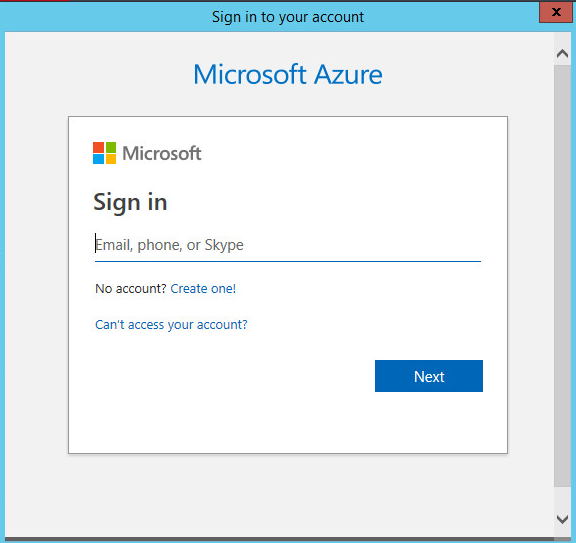
An external Microsoft Azure authentication window is displayed.
10. In the external Microsoft Azure authentication page, specify the following:
a) The email or phone number of the account who is the Azure subscription User Access Administrator, then click Next.
b) Enter the password of the account, then click Sign in.
The Azure Authentication window reappears.
11. Select a Subscription. Only subscriptions related to the region where the ZCA is installed are displayed.
12. Once you select a subscription, a Directory related to the subscription is populated.
13. The Region where ZCA is installed is automatically populated in the Azure Authentication window.
14. Define a new storage account that will be used for replication and recovery or select one from a list of existing storage accounts in the drop down menu.
By default, the Create new storage account option is selected.
Important: |
Each ZCA requires a separate storage account. Multiple ZCAs using the same account is not supported. |
a) By using the default option Create new in the Storage Account field, the installation creates a new resource group and a Standard storage account.
b) Click Use existing to select an existing storage account. When you select this option, the drop down menu becomes active.
■ Only Standard storage accounts which exist in the selected region and subscription are displayed in the storage account drop down menu.
■ General-purpose v1 (GPv1) accounts are supported.
■ Blob Storage accounts are not displayed for selection since the Blob Storage account type is not supported.
■ When you select an existing storage account, the account is automatically tagged with a Zerto unique tag.
Note: |
When a storage account is either created or selected, the following occurs: ■ The journal and recovery disks are created in the storage account. ■ The selected storage account appears in Site Settings, in the Site Information tab. |
15. Click NEXT.
The Connectivity page is displayed.
16. Select the IP address of the machine on which you are installing the Zerto Cloud Appliance. The protected site accesses the Azure site through VPN using this IP.
17. Click NEXT.
The Zerto Virtual Manager Site Details window is displayed. Enter the site details:
Site Name: | (Optional) A name to identify the site. This name is displayed in the Zerto User Interface |
Site Location: | (Mandatory) Information such as the address, or name of the site to identify it. |
Contact Name: | (Mandatory) The name of the person to contact if a need arises. |
Contact Email: | (Optional) The email address to contact if a need arises. |
Contact Phone: | (Optional) The phone number to contact if a need arises. |
Click NEXT.
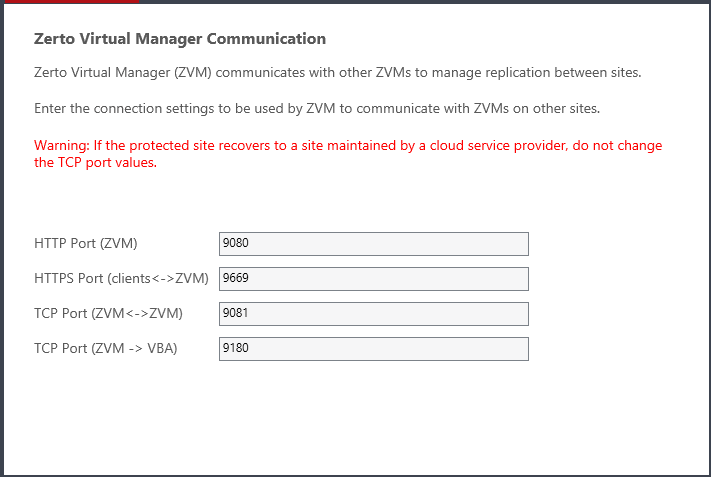
The Zerto Virtual Manager Communication window is displayed.
Port Description Parameter | Default Port Number | Communication Direction | Between... | Comments |
HTTP Port (ZVM) | 9080 | Inbound | Zerto Virtual Manager - and - Zerto internal APIs, and Cmdlets | |
HTTPS Port (clients<->ZVM) | 9669 | Inbound | Zerto User Interface - and - Zerto Virtual Manager | |
TCP Port (ZVM<->ZVM) | 9081 | Inbound and outbound | Zerto Virtual Manager - and - Zerto Virtual Manager | If you change the value, when pairing sites, use the TCP port value you specify here. Pairing the sites is described in “Pairing an Azure Site”, on page 21. |
TCP Port (ZVM->VBA) | 9180 | Inbound and outbound | Zerto Virtual Manager - and - Virtual Backup Appliance (VBA) | |
18. Click NEXT.
The Validation window is displayed.
Review any errors and warnings. The Zerto installation also validates the limit and availability of the core quota in the Azure region, and in DSv2. For example:
■ If you have 200 core in the region, but the core quota limit for DSv2 is set to 10, instead of the 50 minimum cores required, then during the Zerto installation an error will appear.
■ If your core quota limit for DSv2 is set to 100, and you have 20 available cores in the region, then during the Zerto installation a warning will appear.
■ If your core quota limit for DSv2 is set to 100, and you already have 70 cores used by DSv2 instances, then during the Zerto installation a warning will appear.
19. Review any errors and warnings, and after you see that Zerto software can be installed successfully, click RUN and continue to the end of the installation.
20. If you intend managing your disaster recovery from this machine, you can select to open the Zerto Virtual Manager (ZVM) Interface at the end of the installation, logging in with the user name and password for the Azure instance on which you installed the Zerto Virtual Manager. In this user interface you set up Zerto, as described in
“Initial Configuration”, on page 21.
21. You must exclude the following folders from antivirus scanning:
Zerto Virtual Replication |
%ProgramData%\Zerto\Data\zvm_db.mdf |
C:\Program Files\Zerto\Zerto Virtual Replication\Zerto.Zvm.Service.exe |
C:\Program Files\Zerto\Zerto Virtual Replication\Zerto.Vba.VbaService.exe |
C:\Program Files\Zerto\Zerto Virtual Replication\Zerto Online Services Connector\Zerto.Online.Services.Connector.exe |
C:\Program Files\Zerto\Zerto Virtual Replication\Embedded DB Manager Service\Zerto.LocalDbInstanceManagerService.exe |
Failure to do so may lead to the Zerto Virtual Replication folder being incorrectly identified as a threat and in some circumstances corrupt the Zerto Virtual Replication folder.
22.