Reconfiguring the Zerto Virtual Manager Setup
When installing Zerto Cloud Appliance, you provide the IP address of the machine on which you are installing it. This is where the Zerto Virtual Manager runs and displays the Zerto User Interface.
You can change this IP address if necessary, using the Zerto Diagnostics utility.
To reconfigure the Zerto Virtual Manager:
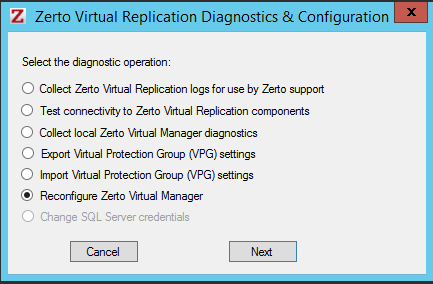
1. Click Start > Programs > ZVR > Zerto Diagnostics.
2. Select Reconfigure Zerto Manager and click Next
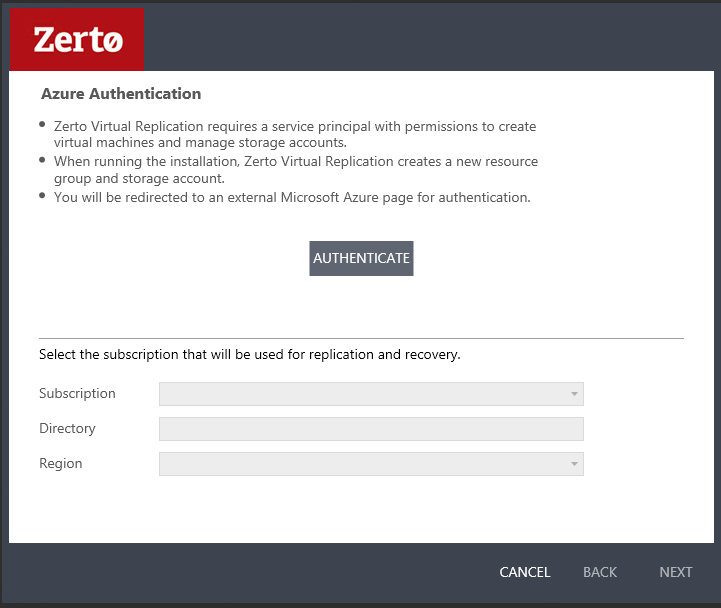
The Azure Authentication dialog is displayed.
3. Click AUTHENTICATE.
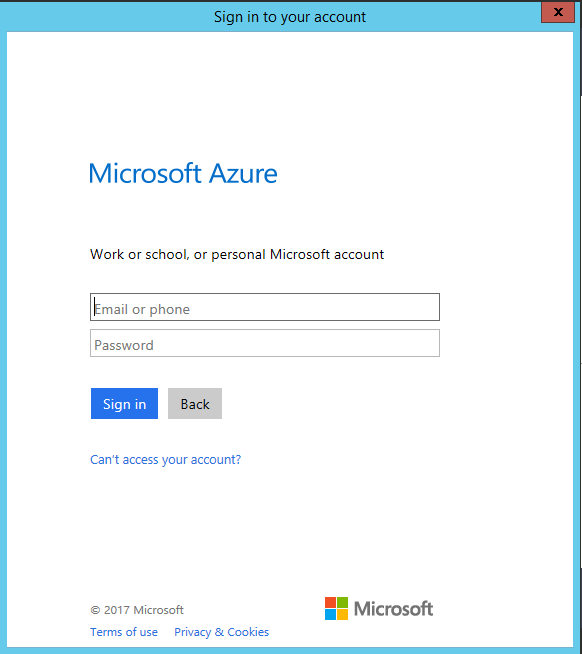
The Microsoft Azure authentication page is displayed. The Azure Authentication dialog remains active.
4. Specify the following:
■ The email or phone number of the account who is the Azure subscription User Access Administrator.
■ The password of the account.
Zerto automatically detects the region in which the ZCA is installed.
5. Click Sign in.
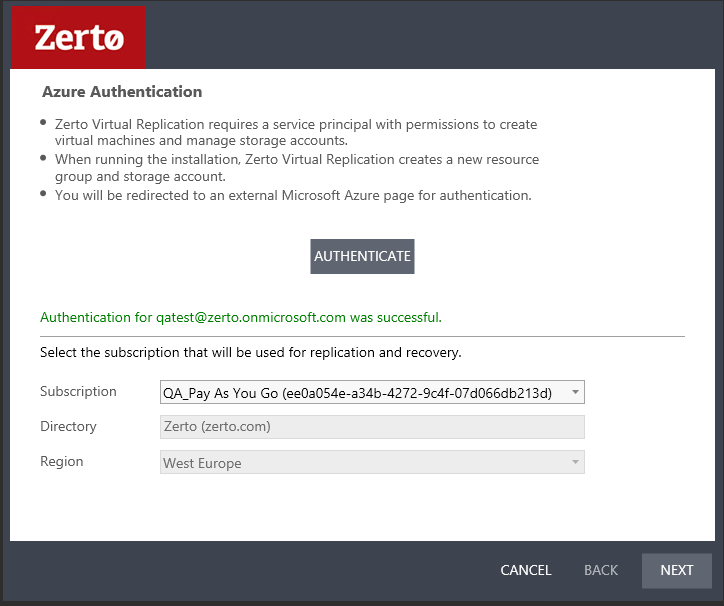
The Azure Authentication dialog is displayed with fields populated by the Azure authentication.
6. From the dropdown list, select the Subscription.
7. Click NEXT.
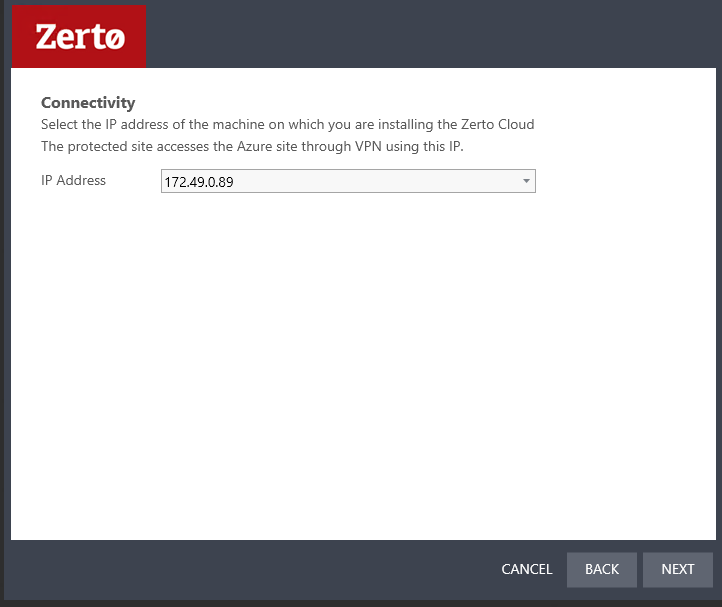
The Connectivity dialog is displayed.
8. Select the IP Address of the machine on which you are installing the Zerto Cloud Appliance. The protected site accesses the Azure site through VPN using this IP.
9. Click NEXT.
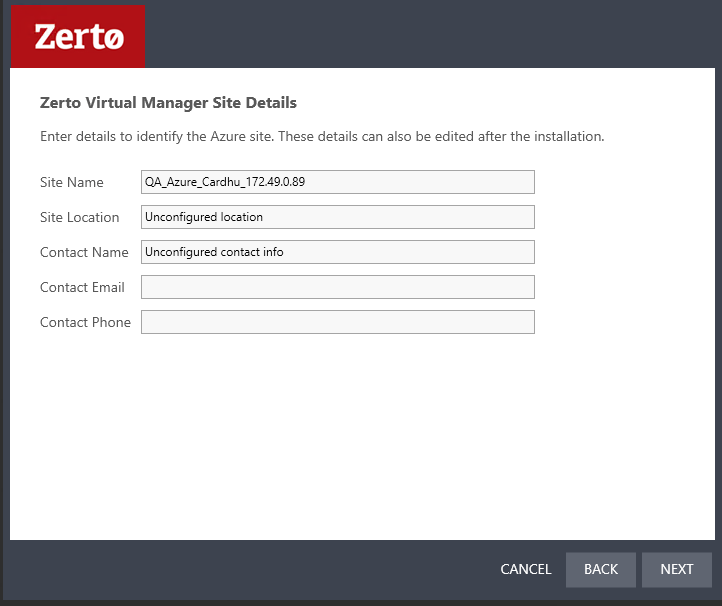
The ZVM Site Details dialog is displayed.
10. Enter the site details:
Site Name: | (Optional) A name to identify the site. This name is displayed in the Zerto User Interface |
Site Location: | (Mandatory) Information such as the address, or name of the site to identify it. |
Contact Name: | (Mandatory) The name of the person to contact if a need arises. |
Contact Email: | (Optional) The email address to contact if a need arises. |
Contact Phone: | (Optional) The phone number to contact if a need arises. |
11. Click NEXT.
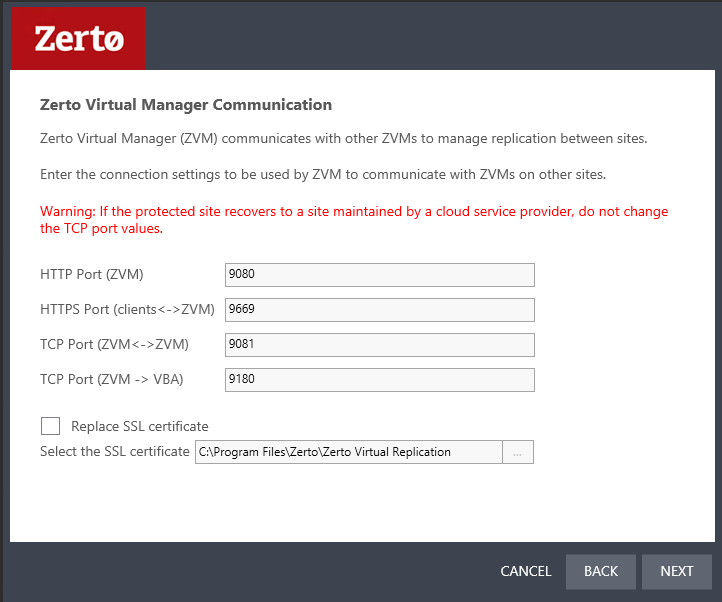
The ZVM Communication dialog is displayed.
HTTP Port (ZVM): The port used for inbound communication between the Zerto Virtual Manager and Zerto internal APIs, and Cmdlets.
HTTPS Port (clients <->ZVM): The port used for inbound communication between the Zerto User Interface and the Zerto Virtual Manager.
TCP Port (ZVM <-> ZVMs): The port used for communication between Zerto Virtual Managers. If you change the value, when pairing sites, use the TCP port value you specify here. Pairing the sites is described in “Pairing an Azure Site”, on page 20.
TCP Port (ZVM -> VBA): The port used for communication between the Zerto Virtual Manager and the Virtual Backup Appliance.
12. Click NEXT.
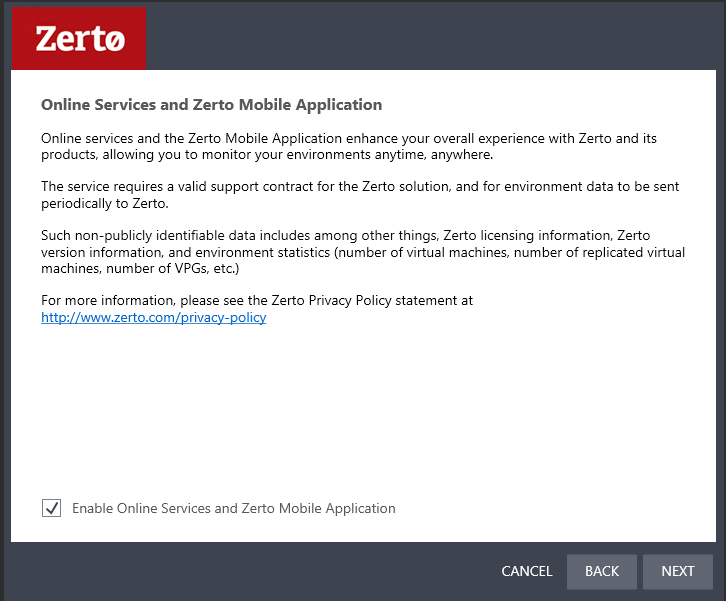
The Online Services and Zerto Mobile Application dialog is displayed.
13. Click NEXT.
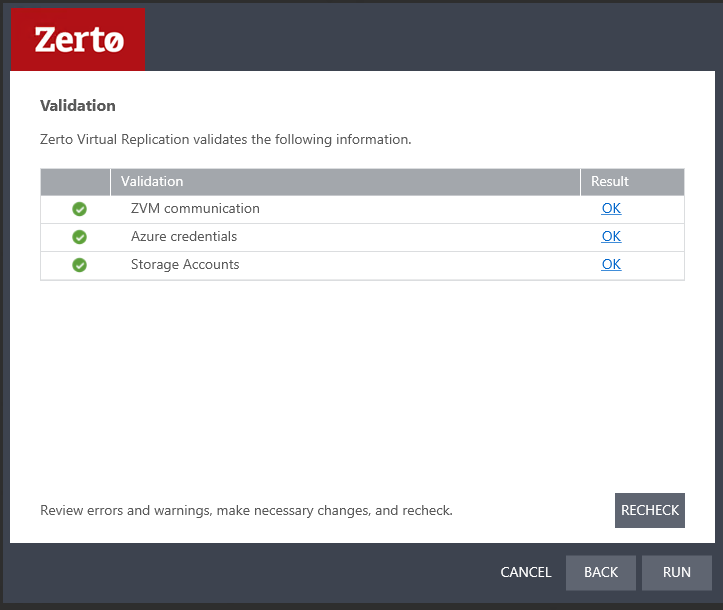
14. Click RUN
The installation checks that the installation can proceed successfully.
If you changed the IP address of the Zerto Virtual Manager, you must unpair the Azure and protected sites, and then pair the sites again.