Performing an Express Installation
You can install Zerto using the defaults provided by Zerto. Site and connectivity information can be updated in the Zerto User Interface after installation, if required.
Before you Begin:
To perform an express install of Zerto:
1. Run Zerto Cloud Appliance Installer for Amazon Web Services (AWS).
Note: If the required version of Microsoft .NET Framework is not installed, you are prompted to install the required version of .NET Framework, which is included as part of the Zerto installation package. After .NET is installed the machine automatically restarts and the Zerto installation begins.
2. Follow the wizard through the installation until the dialog for the Installation Type and select the Express Installation option.
3. Click Next.
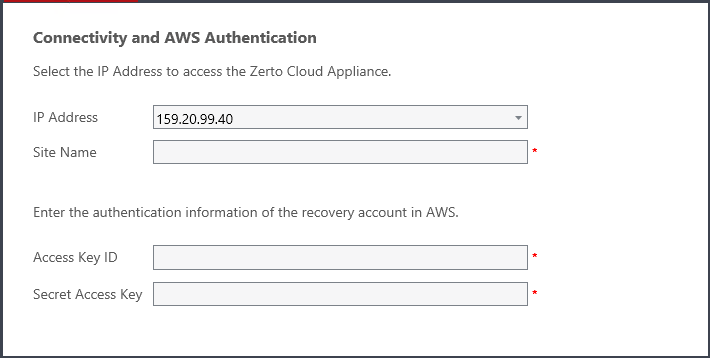
The Connectivity and AWS Authentication dialog is displayed.
4. Specify the following:
■ IP Address: The IP address or host name of the machine on which you are installing the Zerto Cloud Appliance. The protected site accesses the recovery site using this IP.
■ Site Name: A name to identify the site.
■ Access Key ID: An alphanumeric text string that uniquely identifies the AWS account owner.
■ Secret Access Key: A password.
The Secret Access Key with the Access Key ID forms a secure information set that confirms the user's identity.
5. Click NEXT.
The installation performs checks to make sure that the installation can proceed successfully.
6. After the checks complete successfully, click RUN and continue to the end of the installation.
If you intend managing your disaster recovery from this machine, you can select to open the Zerto Virtual Manager (ZVM) Interface at the end of the installation, logging in with the user name and password for the AWS instance on which you installed the Zerto Virtual Manager. In this user interface you set up Zerto, as described in
“Initial Configuration”, on page 17.
7. You must exclude the following folders from antivirus scanning:
Zerto Virtual Replication |
%ProgramData%\Zerto\Data\zvm_db.mdf |
C:\Program Files\Zerto\Zerto Virtual Replication\Zerto.Zvm.Service.exe |
C:\Program Files\Zerto\Zerto Virtual Replication\Zerto.Vba.VbaService.exe |
C:\Program Files\Zerto\Zerto Virtual Replication\Zerto Online Services Connector\Zerto.Online.Services.Connector.exe |
C:\Program Files\Zerto\Zerto Virtual Replication\Embedded DB Manager Service\Zerto.LocalDbInstanceManagerService.exe |
Failure to do so may lead to the Zerto Virtual Replication folder being incorrectly identified as a threat and in some circumstances corrupt the Zerto Virtual Replication folder.
8.