After Starting a Test, What Happens?
The virtual machines in the virtual protection group are created at the recovery site with the suffix testing recovery.
Note: The following conversions are done to a protected virtual machine when it is recovered in vCenter Server:
■ Virtual machines are recovered in vCenter Server with the highest hardware version supported by the vCenter Server host version under which the virtual machine is recovered.
■ A Generation 1 virtual machine is recovered in vCenter Server with BIOS with the highest supported hardware version.
■ A Generation 2 virtual machine is recovered in vCenter Server with EUFI. The host in vCenter must support hardware version 8 or higher.
■ Recovered virtual machines use the VMware Virtual E1000 network adapter.
All testing is written to scratch volumes. The longer the test period the more scratch volumes are used, until the maximum size is reached, at which point no more testing can be done. The maximum size of all the scratch volumes is determined by the journal size hard limit and cannot be changed. The scratch volumes reside on the storage defined for the journal. Using these test scratch volumes makes cleaning up the test failover more efficient.
While a test is running:
■ The virtual machines in the VPGs continue to be protected throughout the test.
■ You cannot take a snapshot of a test machine, since the virtual machine volumes are still managed by the VRA and not by the virtual machine. Using a snapshot of a test machine will create a corrupted virtual machine.
■ You cannot delete, clone, migrate to another host or change the disk properties of any of the test virtual machines.
■ You cannot initiate a failover while a test is being initialized or closed.
Monitor the status of a failover test by doing the following:
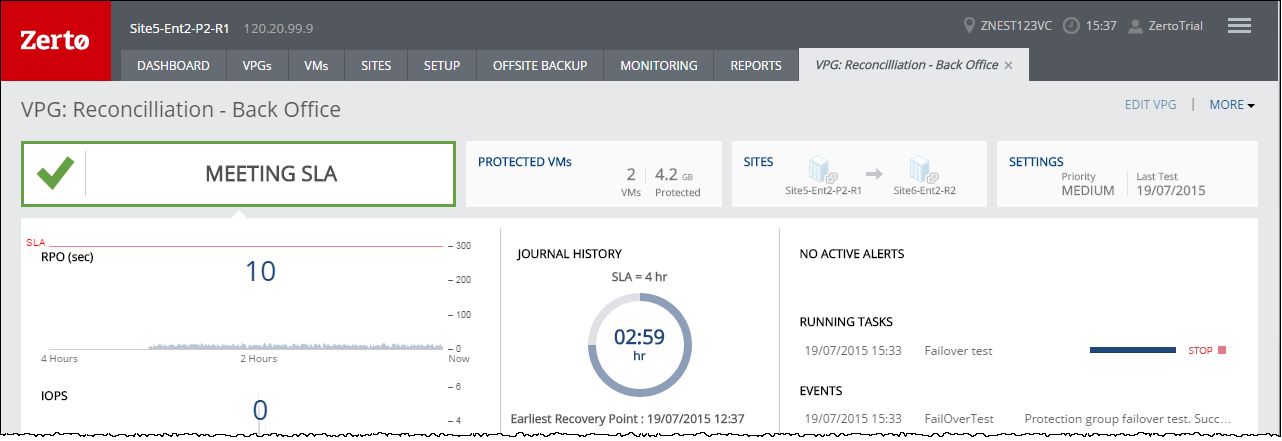
■ In the Zerto User Interface, click the VPGs tab. The Operation field in the GENERAL view displays Testing Failover when a failover test is being performed.
■ In the Zerto User Interface, click the VPGs tab, and then click the name of a VPG you are testing. A dynamic tab is created displaying the specific VPG details including the status of the failover test.
ITo stop a failover test:
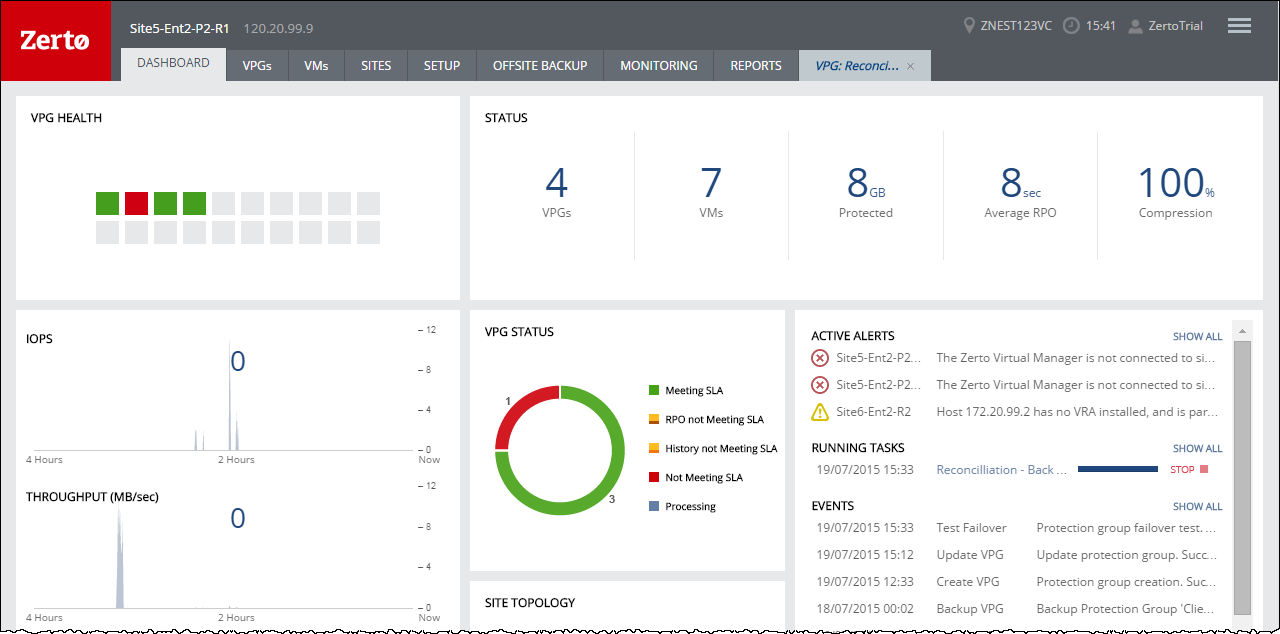
1. Click the Stop icon, in either the Dashboard or the dynamic tab, to stop the test in the specific VPG tab.
You can also stop the test via the TASKS popup dialog in the status bar, or by selecting MONITORING > TASKS.
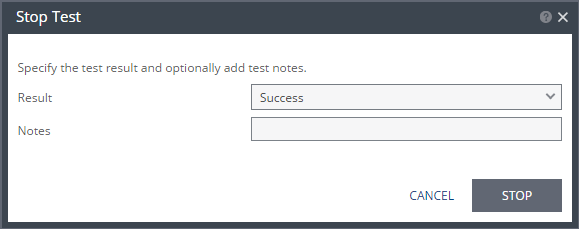
The Stop Test dialog is displayed.
2. In the Result field specify whether the test succeeded or failed.
3. Optionally, in the Notes field, add a description of the test. For example, specify where external files that describe the tests performed are saved. Notes are limited to 255 characters.
4. Click STOP.
After stopping a test, the following occurs:
■ Virtual machines in the recovery site are powered off and removed.
■ The resource group created for the operation is deleted.
■ The checkpoint that was used for the test has the following tag added to identify the test: Tested at startDateAndTimeOfTest.
This checkpoint can be used to identify the point-in-time to use to restore the virtual machines in the VPG during a failover.
\