Recovery Reports
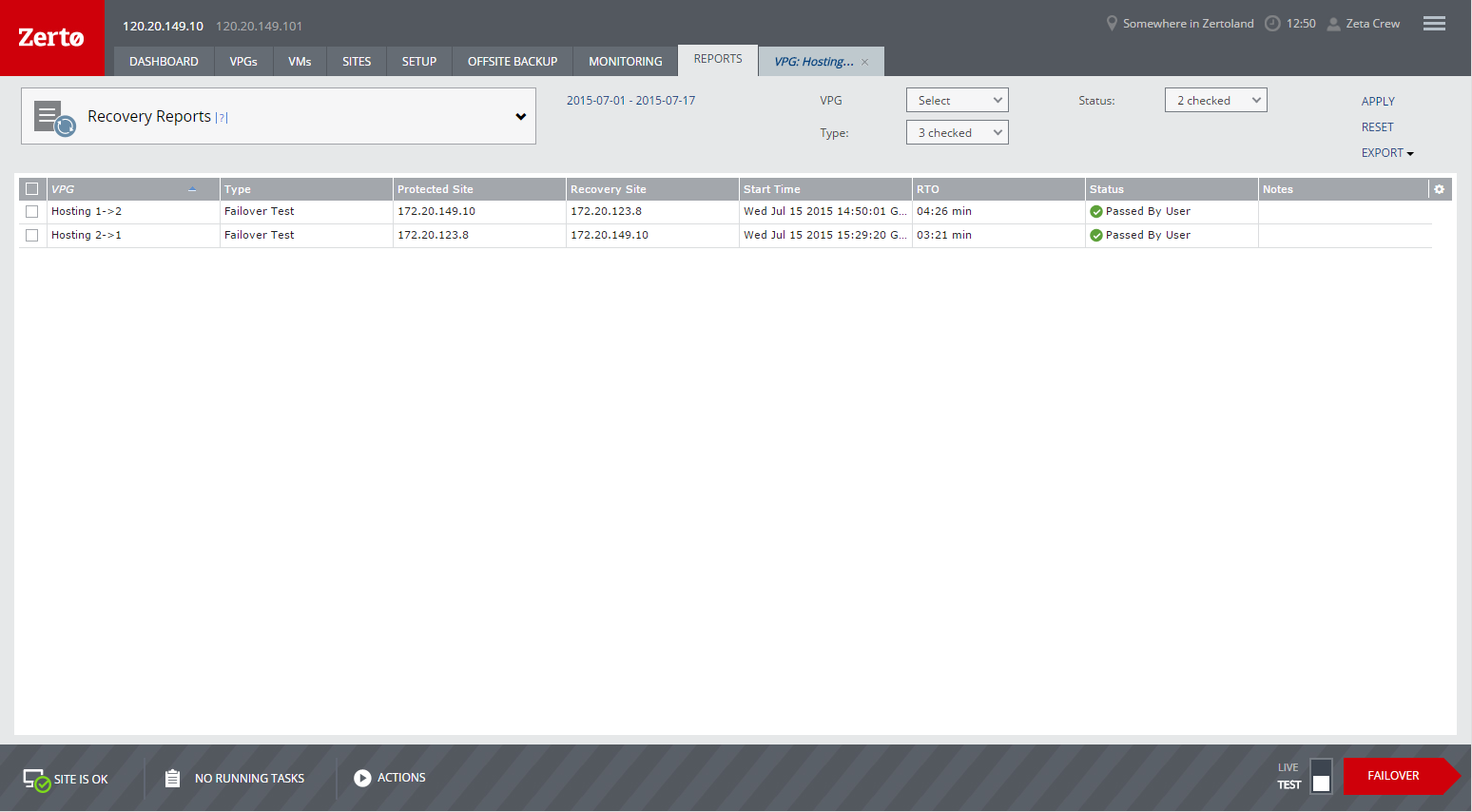
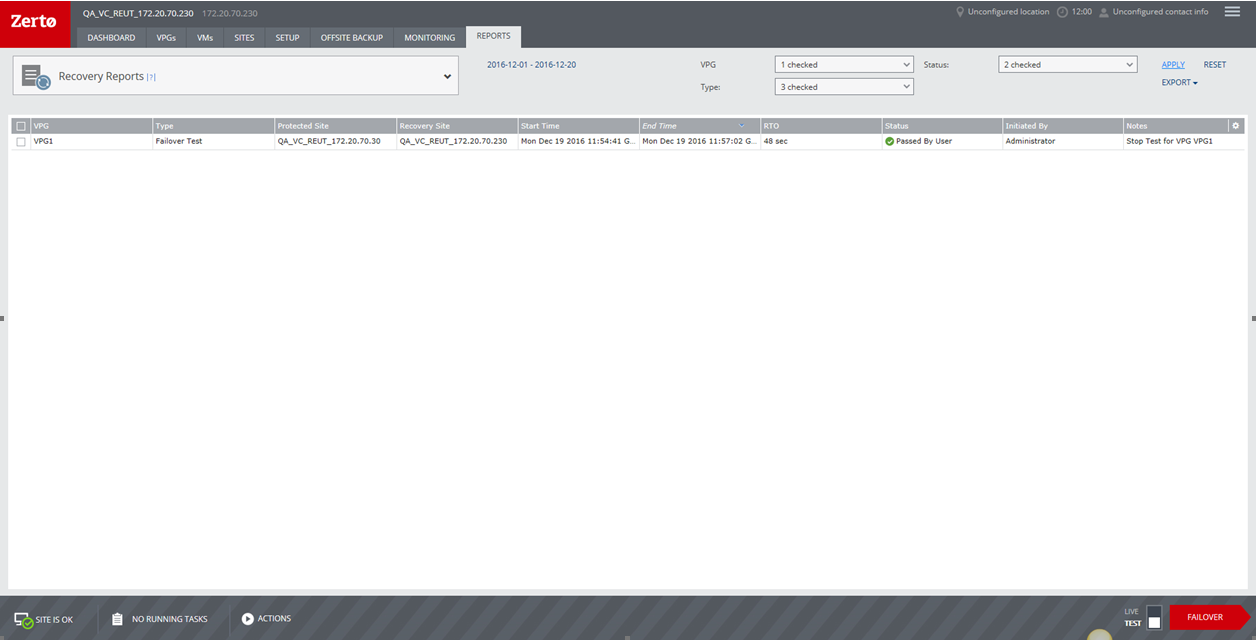
Information about recovery operations — failover tests, moves, and failovers — can be displayed in Recovery Reports under the REPORTS tab. The information includes the following:
■ The name of the virtual protection group (VPG) on which the operation was done
■ The type of operation
■ The protected and the recovery sites involved
■ When the recovery operation was started
■ The RTO
■ Whether the operation succeeded or not
■ Any notes added during a failover test
Recovery Reports are always kept, and never deleted.
You can filter the tests by the following:
From and To – The dates for which you want information. Only operations performed between these dates are displayed.
VPG – Select the VPGs for which you want information. The number of VPGs you selected is displayed. If you select All, the total number of VPGs is shown.
Type – Select the recovery operations for which you want information: Failover, Move, Failover Test. If more than one operation is selected, the number of recovery operations you selected is displayed.
Status – Select the statuses for which you want information: Success, Failed. If more than one status is selected, the number of statuses you selected is displayed.
Click APPLY to apply the selected filtering.
Click RESET to reset the display to the default values.
Click EXPORT and choose PDF or ZIP to generate a report.
If the report is exported to a PDF, information is displayed by VPG and then by virtual machine within the VPG. The following information is described in the report.
■ The date and time when the report was generated.
The Recovery Operation Details include the following information:
■ The name of the person who initiated the operation
■ The type of recovery operation
■ The point in time
■ The start time
■ The end time
■ RTO
■ The result
■ Notes
The Virtual Protection Group Recovery Settings includes the following:
■ The name of the protected site
■ The name of the recovery site
The Virtual Machine Recovery Settings, which include the following:
■ The name of the virtual machine
■ Any custom settings
The Detailed Recovery Steps, which include the following:
■ The step number
■ The description of the step (for example, creating a machine and scratch volumes for testing)
■ Whether the step was successful or not
■ The start and end time of the step
■ The time it took to complete the step
Note: When failover test (FOT) is still in progress, the End Time in the Recovery Report appears as NA.
The Recovery Operation Start Time and Recovery Operation End Time values are shown in UTC according to the Zerto Virtual Manager clock in the recovery site. The Point in Time value takes the checkpoint UTC time, which was created in protected site, and converts it to the recovery site time zone.
Branding the Recovery Report
A branded logo can be placed in the report in the top left corner by adding the logo as a .png file to the <ZertoInstallFldr>\Zerto\Zerto Virtual Replication\gui\ folder with the name provider_logo.png.
The folder ZertoInstallFldr is the root folder where Zerto Virtual Replication in the recovery site is installed. For example, C:\Program Files\Zerto.