Adding a Checkpoint to Identify a Key Point
In addition to the automatically generated checkpoints, you can add checkpoints manually to ensure application consistency and to identify events that might influence recovery, such as a planned switch-over to a secondary generator. You can recover the machines in a VPG to any checkpoint in the journal, to one added automatically or to one added manually. Thus, recovery is done to a point-in-time when the data integrity of the protected virtual machines is ensured.
Note:
■ Adding a checkpoint manually does not guarantee transaction consistency.
■ Changes to a VPG that result in re-synchronization of the VPG results in all checkpoints being removed. Adding checkpoints to the journal is resumed after synchronization completes. A forced synchronization of the VPG only removes checkpoints if the journal fills up during the synchronization.
To add a checkpoint to a VPG:
1. In the Zerto User Interface select ACTIONS > ADD CHECKPOINT.
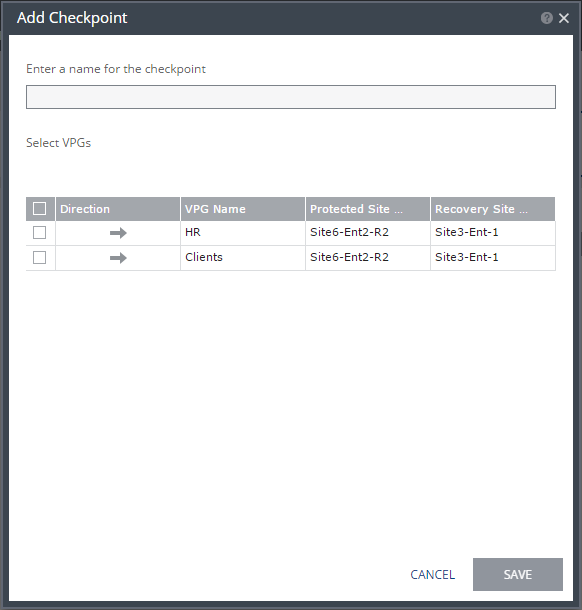
The Add Checkpoint dialog is displayed.
A list of VPGs is displayed with the requested VPG selected. You can select more VPGs to add the same checkpoint to, for example, when something is happening at your site that affects multiple VPGs.
Note: Crash-consistency is per VPG and not across VPGs, even if a checkpoint was added to multiple VPGs.
2. Enter a name for the checkpoint.
3. Click SAVE.
When testing a failover, as described in
“Testing Recovery To Azure”, on page 142, or actually performing a failover, as described in
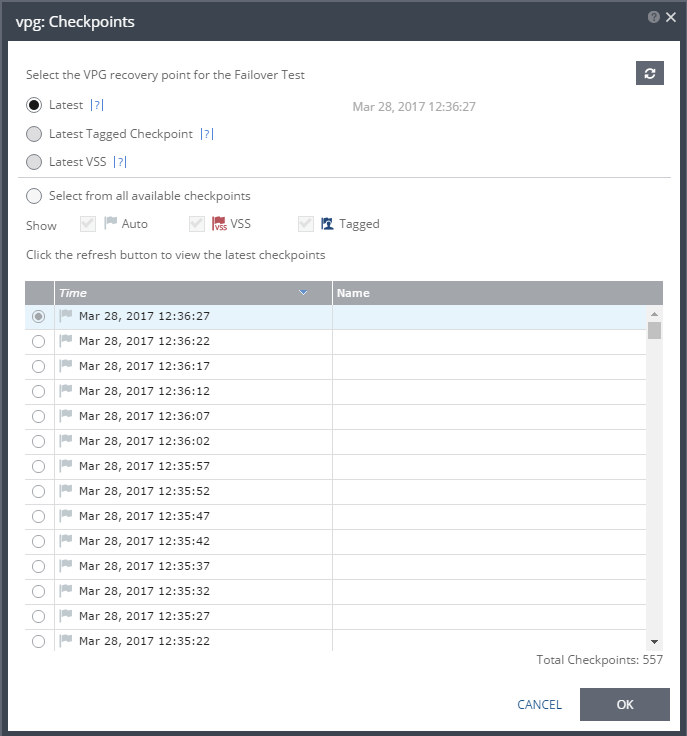
“Managing Failover”, on page 166, you can choose the checkpoint as the point to recover to.
When selecting the point to recover to:
■ The refresh button is initially grayed out and is enabled for clicking after 5 seconds. It is also grayed out for 5 seconds after being clicked, before being re-enabled.
■ A Click the refresh button to view the latest checkpoints reminder is displayed 10 seconds after the refresh button is clicked to remind the user that there is a new Latest Checkpoint.
■ If the user has scrolled to, and selected, a checkpoint anywhere in the checkpoints list, clicking the refresh button will automatically return the user to the selected checkpoint in the list.
Latest – Recovery is to the latest checkpoint. This ensures that the data is crash-consistent for the recovery. When selecting the latest checkpoint, the checkpoint used is the latest at this point. If a checkpoint is added between this point and starting the failover, the later checkpoint is not used.
Latest Tagged Checkpoint – The recovery operation is to the latest checkpoint added in one of the following situations:
■ By a user.
■ When a failover test was previously performed on the VPG which includes the virtual machine.
■ When the virtual machine was added to an existing VPG after the added virtual machine was synchronized.
Note: When replicating from Azure, tagged checkpoints are not consistent across data volumes.
If you do not want to use the latest checkpoint, or latest tagged checkpoint, choose Select from all available checkpoints. By default, this option displays all checkpoints in the system. You can choose to display only automatic, or tagged checkpoints, or any combination of these types.