Upgrading the Current Installation
The existing Virtual Replication Appliances and protected virtual machines, together with all other information, such as checkpoints, journals, sites, and pairing details, are retained and are available in the upgraded installation.
The upgrade is performed without disrupting the protection, but no new checkpoints are written to the journal during the actual upgrade.
This temporarily causes alerts to be issued, even if only a single site was affected, stating that the journal history and RPO do not meet their specified target settings.
To upgrade the version:
1. Run the Zerto Virtual Replication installation executable for your environment.
The Zerto Replication Installation Wizard is displayed.
2. Click NEXT to continue.
Zerto Virtual Replication validates that your system meets the upgrade requirements.
3. Select the checkbox to accept the license agreement, and click NEXT to continue.
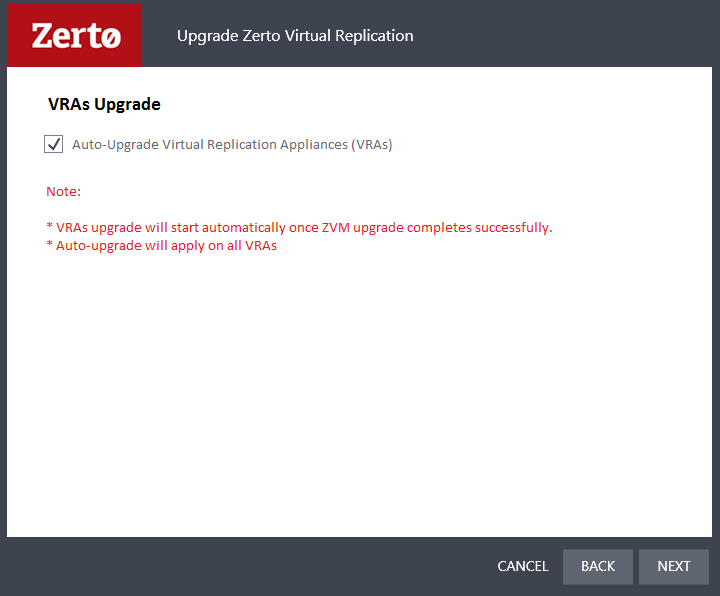
The VRAs Upgrade window is displayed.
The Auto-Upgrade Virtual Replication Appliances checkbox is selected by default, meaning that all the VRAs will be automatically upgraded once the upgrade completes successfully.
■ Optionally, deselect the checkbox if you want to manually upgrade VRAs after the version upgrade completes.
Note: (For Hyper-V environments only) After the upgrade, a delta sync is performed at the protected site, and a bitmap sync is performed at the recovered site.
4. Click Next.
■ The version upgrade proceeds automatically, displaying a Validation box followed by an Upgrade progress box.
■ The Upgrade Complete window is displayed, with the checkbox Open the Zerto Virtual Manager interface already selected.
■ It is highly recommended that you track the VRA upgrade via the Zerto Virtual Manager interface. You may, however, deselect the checkbox if you do not want to track the VRA upgrade progress.
5. Click DONE to close the wizard.
The Zerto Virtual Manager interface opens at the Setup > VRAs tab, displaying the Upgrading VRA tasks.
Note: If during the upgrade, system requirements are identified that require a restart, a window is displayed informing the user that the upgrade is complete and whether to restart the computer.
In such a case, the ZVM service will be started, and the automatic VRA upgrades will begin, only after the VM is restarted.
■ Select YES, if it is convenient to restart the VM immediately:
■ The VM will restart.
■ The ZVM service will be started and the automatic VRA upgrades will begin.
■ Select NO - if it is not convenient to restart the VM immediately:
■ Logging in to the ZVM UI will not be possible because the ZVM service will not have been started yet.
For the manual upgrade procedure for existing VRAs see
“Upgrading VRAs”, on page 36.