Performing an Express Installation
You can install Zerto Virtual Replication using the defaults provided by Zerto. Site information can be provided, if required, after the installation in the Zerto User Interface.
Note: You cannot install Zerto Virtual Replication on the same machine where another version of Zerto Virtual Replication has been installed, for example, if the Zerto Virtual Replication for VMware vCenter Server or vCloud Director version was installed on the machine.
To perform an express install of Zerto Virtual Replication:
1. Run the Zerto Virtual Replication Installer for Hyper-V.
■ If the required version of Microsoft .NET Framework is not installed, you are prompted to install the required version of .NET Framework, which is included as part of the Zerto Virtual Replication installation package.
After .NET is installed, the machine automatically restarts and the Zerto Virtual Replication installation begins.
2. Follow the wizard through the installation until the Installation Type window appears, then select the option Express Installation.
3. Click NEXT.
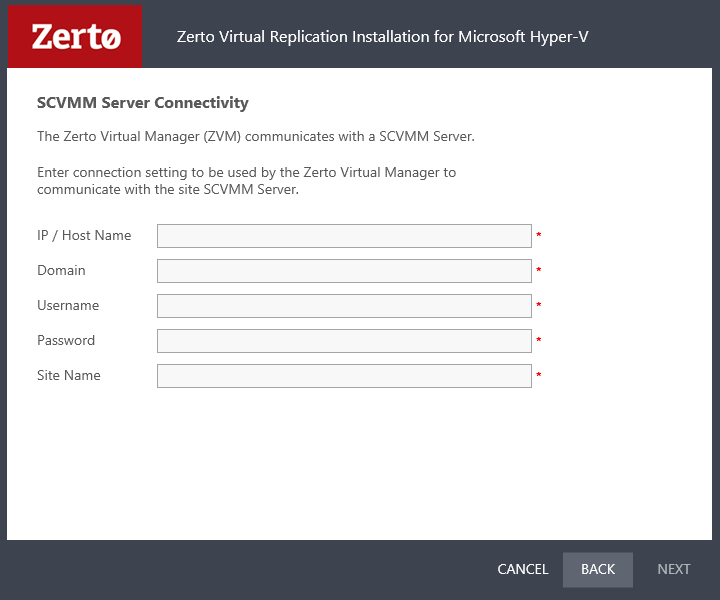
The SCVMM Server Connectivity window appears.
4. Specify the following:
■ IP/Host Name: The IP address or host name of the machine where the System Center Virtual Machine Manager runs.
■ Domain: The domain for a user with administrator level privileges to the System Center Virtual Machine Manager.
■ Username: The user name for a user with administrator level privileges to the System Center Virtual Machine Manager.
■ Password: A valid password for the given user name.
■ Site Name: A name to identify the site.
5. Click NEXT. The Validation window appears.
The installation performs checks to make sure that the installation can proceed successfully.
6. After the checks complete successfully, click RUN and continue to the end of the installation.
As part of the installation, the Zeus driver (jFLR) is also installed. This installation is mandatory for the Zerto Virtual Replication installation.
a) During the installation, you are prompted with a Windows Security message to install the Zerto Storage controller, which will install the Zeus driver (jFLR).
b) Click Install, and continue with the installation.
If you do not install the additional software when prompted, the Zerto Virtual Replication installation will fail.
7. If you intend
managing your disaster recovery
from this machine, you can select to open the Zerto Virtual Manager (ZVM) Interface at the end of the installation, logging in with the user name and password for the SCVMM connected to the Zerto Virtual Manager. In this user interface you set up Zerto Virtual Replication, as described in
“Initial Configuration”, on page 23.
8. You must exclude the Zerto Virtual Replication folder from antivirus scanning. Failure to do so may lead to the ZVR folder being incorrectly identified as a threat and in some circumstances corrupt the ZVR folder.
9. Add the machine to the relevant host boot configuration, so that on starting up the host, this machine, running the Zerto Virtual Manager, is also powered on automatically.
10. Install Zerto Virtual Replication on peer sites.