Installing a Zerto Virtual Replication Appliance (VRA) on a Host
Use the following procedure to install a Zerto Virtual Replication Appliance on a host.
To install a Zerto Virtual Replication Appliance (VRA) on a host:
1. In the Zerto User Interface, click SETUP > VRAs.
2. Select a host which requires a VRA and click NEW VRA.
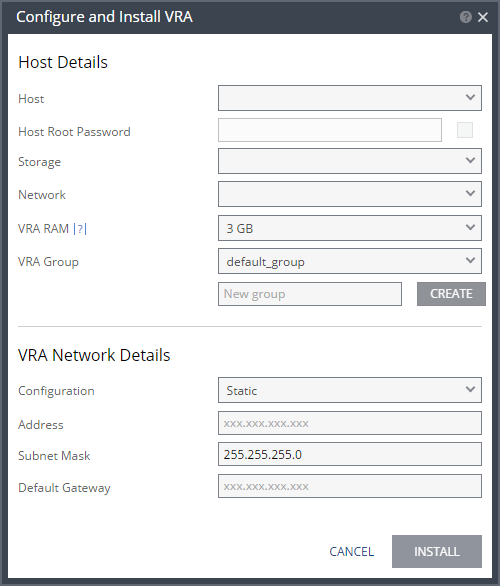
The Configure and Install VRA window appears.
Note: If you selected a cluster or multiple hosts, the VRA is installed on the first host in the displayed list.
3. In the Host Details area, specify the following:
■ Host: The host under which the VRA is installed. The drop-down displays the hosts which do not have a VRA installed, with the selected host displayed by default.
■ Host Root Password: For future use.
■ Storage: The storage that the VRA will use for mirror virtual machines and for its journal. You can install more than one VRA on the same storage.
■ Network: The network used to access the VRA.
■ VRA RAM: The amount of memory to allocate to the VRA.
■ The amount determines the maximum buffer size for the VRA, for buffering IOs written by the protected virtual machines, before the writes are sent over the network to the recovery VRA.
■ The recovery VRA also buffers the incoming IOs until they are written to the journal.
■ If a buffer becomes full, a Bitmap Sync is performed after space is freed up in the buffer.
Amount of VRA RAM | VRA Buffer Pool Size |
1GB | 450MB |
2GB | 1450MB |
3GB | 2300MB |
4GB | 3,300MB |
5GB | 4,300MB |
6GB | 5,300MB |
7GB | 6,300MB |
8GB | 7,300MB |
9GB | 8,300MB |
10GB | 9,300MB |
11GB | 10,300MB |
12GB | 11,300MB |
13GB | 12,300MB |
14GB | 13,300MB |
15GB | 14,300MB |
16GB | 15,300MB |
The protecting VRA can use 90% of the buffer for IOs to send over the network and the recovery VRA can use 75% of the buffer.
For Example: A protecting VRA defined with 2GB of RAM can buffer approximately 1305MB before the buffer is full and a Bitmap Sync is required.
The number of virtual machines that a VRA can support is not dependent on the amount of VRA RAM.
■ VRA Group: Select the VRA Group from the dropdown list.
■ To create a new VRA group, type in the name of the new group and click CREATE. You can then choose the new group from the dropdown list.
You group VRAs together when VRAs use different networks so they can be grouped by network, for example when the protected and recovery sites are managed by the same SCVMM and you want to replicate from the branch site to the main site. Within a group the priority assigned to a VPG dictates the bandwidth used and is applicable within a group and not between groups. Thus, a VPG with a high priority is allocated bandwidth before VPGs with lower priorities. VPGs that are on VRAs with different VRA groups, for example, VPG1 on VRA1 in group1 and VPG2 on VRA2 in group2, do not affect each other, as the priority is relevant only within each group.
4. In the VRA Network Details area, specify the following:
■ Configuration: Either have the IP address allocated via a static IP address or a DHCP server.
If you select the Static recommended option, enter the following:
■ Address: The IP address for the VRA.
■ Subnet Mask: The subnet mask for the network. The default value is 255.255.255.0.
■ Default Gateway: The default gateway for the network.
5. Click INSTALL.
The VRA installation starts and the status is displayed in the TASKS popup dialog in the status bar and under MONITORING > TASKS.
■ The VRA displayed name and DNS name is Z-VRA-hostname. If a virtual machine with this name exists, for example when a previous VRA was not deleted, the VRA name has a number appended to it.
6. Repeat this procedure to add a VRA to every Hyper-V host that hosts virtual machines for which you want replication.
■ Zerto recommends installing a VRA on every listed Hyper-V host.
■ An alert is issued after the first VRA is installed in a cluster because Zerto recommends installing a VRA on every host in the cluster. The alert is automatically removed when all the hosts in the cluster have VRAs installed.
■ A VRA can manage a maximum of 1500 volumes, whether these are volumes being protected or recovered.
■ VRAs are configured and managed by the Zerto Virtual Manager. You cannot take snapshots of VRAs as snapshots cause operational problems for the VRAs.
■ The following folder is created as part of the VRA installation and must not be removed:
C:\zerto-temp-<storage_name> – VRA installation files
Where <storage_name> signifies the target host. When a VRA is installed using the local storage (c:\), there is only one folder with this name. When a VRA is installed on remote storage, a second folders with the same name is also created where the VRA is installed