Reconfiguring the Zerto Virtual Manager Setup
When installing Zerto Cloud Appliance, you provide the IP address of the machine on which you are installing it. This is where the Zerto Virtual Manager runs and displays the Zerto User Interface.
You can change this IP address if necessary, using the Zerto Virtual Replication Diagnostics utility.
To reconfigure the Zerto Virtual Manager:
1. Click Start > Programs > Zerto Virtual Replication > Zerto Diagnostics.
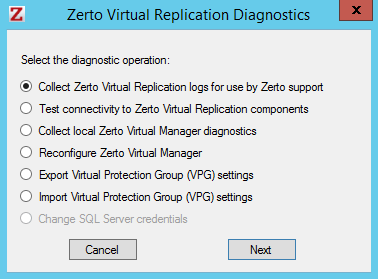
The Zerto Virtual Replication Diagnostics menu dialog is displayed.
2. Select the Reconfigure Zerto Virtual Manager option and click Next.
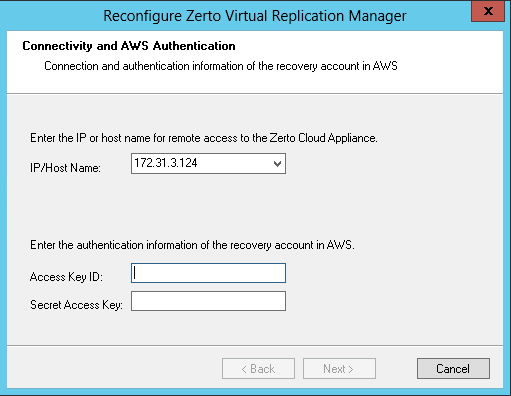
The settings for the connection to the Zerto Cloud Appliance are displayed.
3. Change the IP/host name, and access key ID and secret access key, if necessary.
IP / Host Name – The IP address or host name of the machine on which the Zerto Cloud Appliance is installed.
Access Key ID – A unique identifier that is associated with a secret access key.
Secret Access Key – A key that is used with the access key ID.
4. Click Next.
The the Zerto Virtual Manager is reconfigured to use the new information.
5. Click Finish.
If you changed the IP address of the Zerto Virtual Manager, you must unpair the AWS and protected sites, and then pair the sites again.