Running Scripts Before or After Recovering a VPG
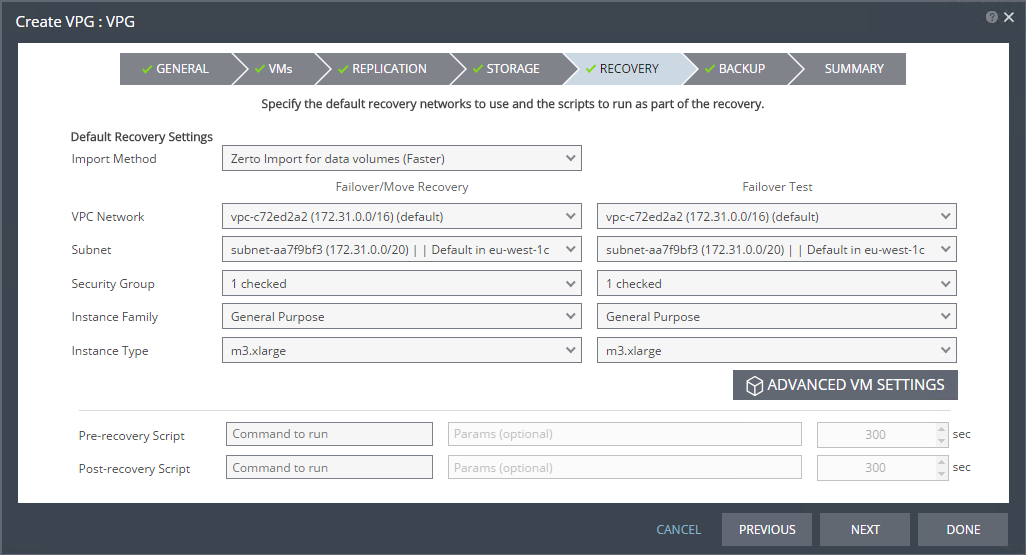
Before and after executing a failover, move, or test failover, you can run executable scripts, such as Windows .bat files or PowerShell scripts. A pre-recovery script is always run at the beginning of the recovery operation. A post-recovery script is run after all the virtual machines are powered on at the recovery site.
The scripts must be saved to the machine where the remote Zerto Virtual Manager (ZVM) is installed.
Both pre-recovery and post-recovery scripts are run by the ZVM service on the ZVM machine. The account running the ZVM service is the account that will run the scripts when they are executed.
The scripts can include environment variables that can be included as part of the script itself, or passed to the script as parameters. When the script is passed an environment variable as a parameter, the variable is evaluated before executing the script. The following environment variables are available:
%ZertoVPGName% – The name of the VPG. If the name includes a space, enclose the variable in double quotes (”). For example, the VPG MyVPG uses the format %ZertoVPGName% but the VPG My VPG uses the format “%ZertoVPGName%”.
%ZertoOperation% – The operation being run: FailoverBeforeCommit, FailoverRollback, Test, MoveBeforeCommit, MoveRollback. Use the result returned for this variable to limit when the script runs, dependent on the operation. The scripts are run after all the virtual machines are powered on at the recovery site and the variable is set to FailoverBeforeCommit or MoveBeforeCommit. Use FailoverRollback or MoveRollback when rolling back the Failover or Move operation, to undo whatever changes a previous script has done (such as updating the DNS records).
%ZertoHypervisorManagerIP% – The IP address of the hypervisor manager, VMware vCenter Server or Microsoft SCVMM, where the VPG is recovered.
%ZertoHypervisorManagerPort% – The port used by the Zerto Virtual Manager to communicate with the hypervisor manager, VMware vCenter Server or Microsoft SCVMM.
%ZertoForce% – A Boolean value, Yes/No, that dictates whether to abort the recovery operation if the script fails. For example, whether to rollback a Move operation when the script fails and returns a non-zero value.
For example, if a specific VPG should not be migrated, the pre-recovery script can determine whether to continue based on the values of the %ZertoOperation% and %ZertoVPGName%.
When specifying scripts in the definition of a VPG, enter values for the Pre-recovery Script and Post-recovery Script:
Command to run – The full path of the script to run. The script must be located on the same machine as the Zerto Virtual Manager for the recovery site.
Params – The values of any parameters to pass to the script. Separate parameters with a space.
Timeout (sec) – The time-out in seconds for the script to run. If the script runs before executing a failover, move, or test failover and the script fails or a timeout value is reached, an alert is generated and the failover, move, or test failover is not performed. If the script runs after executing a failover, move, or test failover and the timeout value is reached, an alert is generated. The default timeout value is specified in the Site Configuration Advanced Settings dialog.
Creating a Script
There are many ways to create scripts to run before or after recovering a VPG. The following procedure uses a Windows PowerShell file (.ps1) or a batch (.bat) file.
To create a script:
1. Create a file on the machine where the Zerto Virtual Manager that manages the recovery is installed.
2. Enter the script that you want to run in the file.
3. Save the file as a Windows PowerShell file (.ps1) or batch (.bat) file.
When writing a PowerShell script, you can include the environment variables in the script. For example, the following code snippet shows the use of the %ZertoOperation% and %ZertoVPGName% environment variables:
$Operation = $env:ZertoOperation $VPG = $env:ZertoVPGName $time = Get-Date if ($Operation -eq "Test") { "$time VPG: $VPG was tested." >> "C:\ZertoScripts\VPG_DR.txt" } if ($Operation -eq "FailoverBeforeCommit") { "$time Failover before commit was performed. VPG: $VPG" >> "C:\ZertoScripts\VPG_DR.txt" } if ($Operation -eq "MoveBeforeCommit"){ "$time Move before commit was performed. VPG: $VPG" >> "C:\ZertoScripts\VPG_DR.txt" } |
Pre-recovery scripts must be saved on the protected site Zerto Virtual Manager machine. Post-recovery scripts must be saved on the recovery site Zerto Virtual Manager machine.
Note: Zerto recommends having both pre- and post-recovery scripts, available on both the protected and recovery Zerto Virtual Manager machines, so that they will work from the protected site.
4. Update Command to run and Params fields for all the VPG definitions that you want to run the script.
Passing parameters is implemented differently for the two script types. For information about passing command line parameters, refer to the relevant PowerShell or batch file documentation.
Using a BAT File
Windows Batch (.bat) is an executable file that does not require anything in order to run. Update Command to run and Params fields for all the VPG definitions that you want to run the script.
Command to run – <script_including_path>
C:\ZertoScripts\PostScript.bat |
Use quotes (“) around the path if it includes spaces. The bat file is an executable file and is therefore included in the Command to run field.
Params – <Zerto_Params>, for example:
%ZertoOperation% %ZertoVPGName% |
Using a PowerShell Script
Windows PowerShell scripts require Windows PowerShell (.exe) to execute. To specify a PowerShell script, update Command to run and Params fields for all the VPG definitions that you want to run the script.
Command to run – powershell.exe
Params – <script_including_path> <Zerto_Params>, for example:
C:\ZertoScripts\PostScript.ps1 %ZertoOperation% %ZertoVPGName% |
Use quotes (“) around the path if it includes spaces.
Note: You might have to set the remote signed execution policy. For example, using the following:
##PowerCLI requires remote signed execution policy - if this is not enabled, ##it may be enabled here by uncommenting the line below. ##Set-ExecutionPolicy -ExecutionPolicy RemoteSigned -Force |
Note: Zerto recommends testing both PowerShell and batch scripts by running them from the command line, to ensure that they run correctly.