Azure Limitations Which Affect Installation and Recoverability
Below are the default Azure limitations which affect installation and recovery.
Default Azure limitations which Affect Installation
■ Storage Limitations:
■ Number of storage accounts: 200 per subscription (note: max is 250)
Default Azure limitations which Affect Recovery
■ Virtual Machines Limitations:
■ VMs per subscription per region: 20 (max: 10K)
■ VM total cores per subscription per region: 20
■ Instance sizes are also limited per region. Many of them are 20 cores per region per subscription
■ Resource groups per subscription: 800
■ Networking:
■ Network interfaces per region: 350
■ NICs per instance: depends on instance size
■ Private IP Addresses per VNET per subscription per region: 4096
■ Storage:
■ Storage Account total size limitation: 500 TB (# of entities (blobs, containers etc) within a storage account: unlimited).
■ Max size of a page blob (vhd): 1 TB
■ Min size of a page blob (vhd): 20 MB
■ Max number of data disks: depends on instance size
■ Windows: https://docs.microsoft.com/en-us/azure/virtual-machines/virtual-machines-windows-sizes To create a VPG from vCloud Director to Azure:
1. In the Zerto User Interface, select ACTIONS > CREATE VPG.
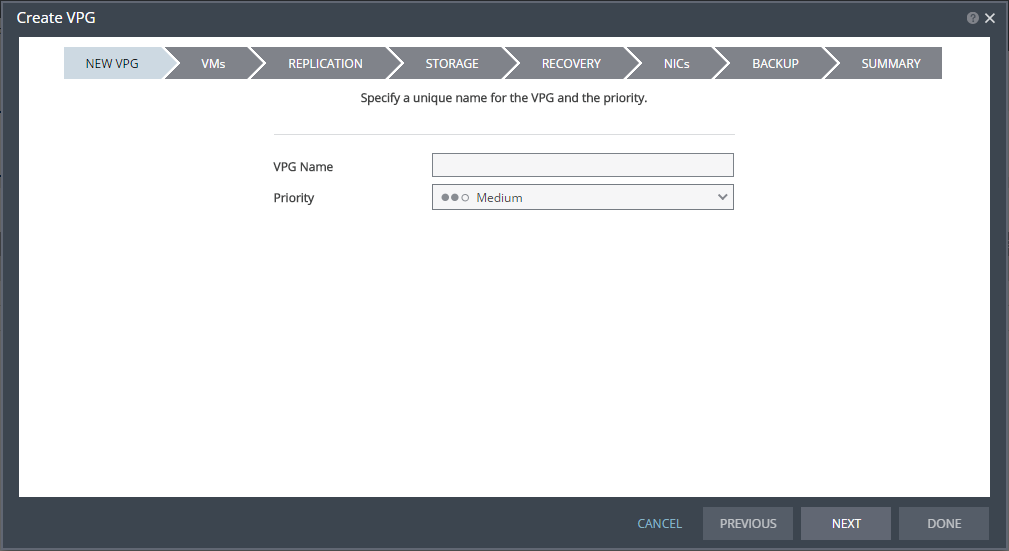
The NEW VPG step of the Create VPG wizard is displayed.
2. Specify the name of the VPG and the priority of the VPG.
VPG Name – The VPG name must be unique. The name cannot be more than 80 characters.
Priority – Determine the priority for transferring data from the protected site to the recovery site when there is limited bandwidth and more than one VPG is defined on the protected site. When there are updates to virtual machines protected in VPGs with different priorities, first the updates from the VPG with the highest priority are passed over the WAN. Medium priority VPGs will only be able to use whatever bandwidth is left after the high priority VPGs have used it. This is also true between medium and low priorities. Note that updates to the protected virtual machines are always sent across the WAN before synchronization data, such as during a bitmap or delta sync. During a synchronization, only after updates to the virtual machines are sent over the WAN, based on the VPG priority, is synchronization data from the VPG sent, and the synchronization data from the VPG with the highest priority is passed over the WAN before data from medium and low priority VPGs.
3. Click NEXT.
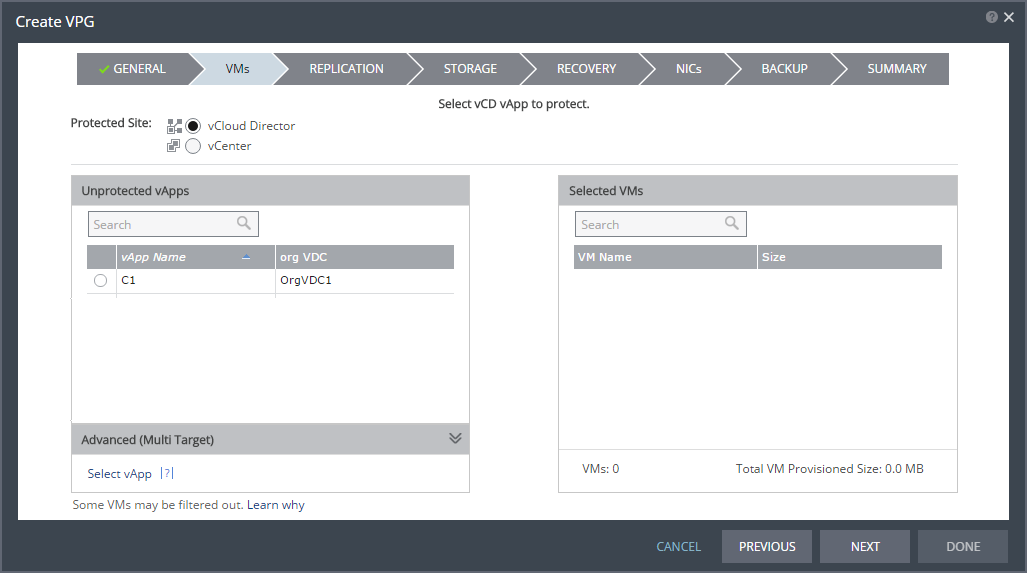
The VMs step is displayed.
You can select virtual machines to protect from the underlying vCenter Server or as a VCD vApp.
4. Select the VCD vApp to protect in this VPG.
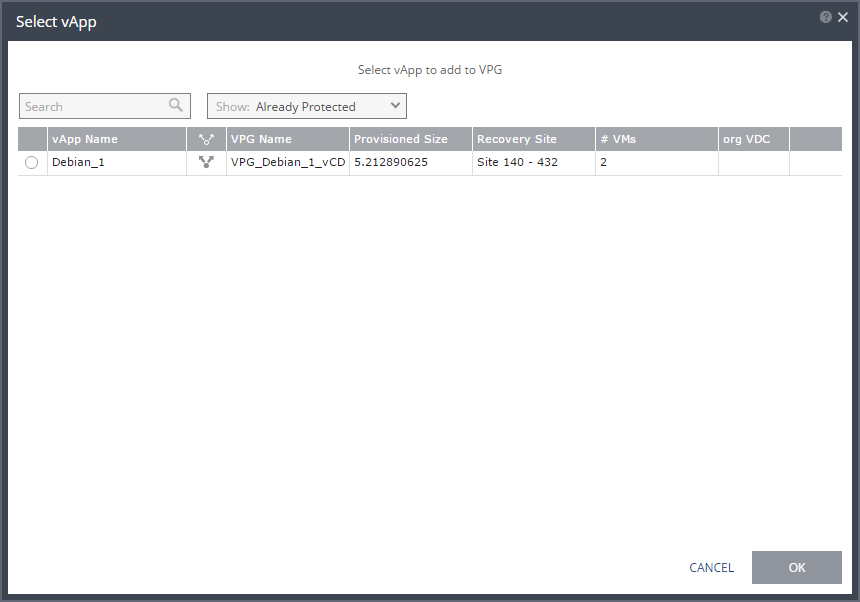
vCD vApps that are not yet protected are displayed in the list. A VPG can include vApps that are not yet protected and vApps that are already protected. You can view protected vApps by clicking Select vApp in the Advanced (Multi Target) section.
The Select vApp dialog is displayed.
Note: vApps can be protected in a maximum of three VPGs. These VPGs cannot be recovered to the same site. vApps protected in the maximum number of VPGs are not displayed in the Select VMs dialog.
Protecting vApps in several VPGs is enabled only if both the protected site and the recovery site, as well as the VRAs installed on these sites, are of version 5.0 and higher.
Note: Define the required boot order for VCD vApps in the vCloud Director console.
5. Click NEXT.
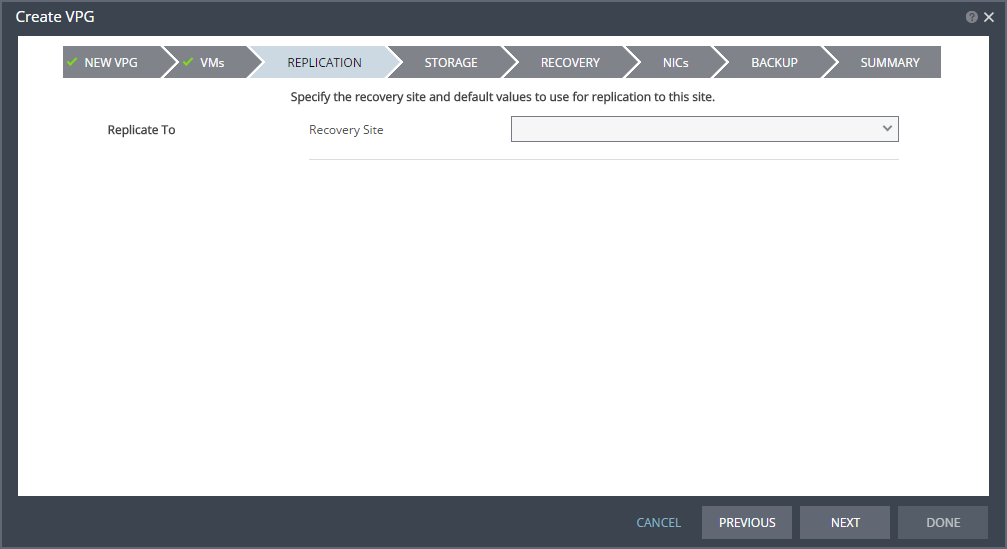
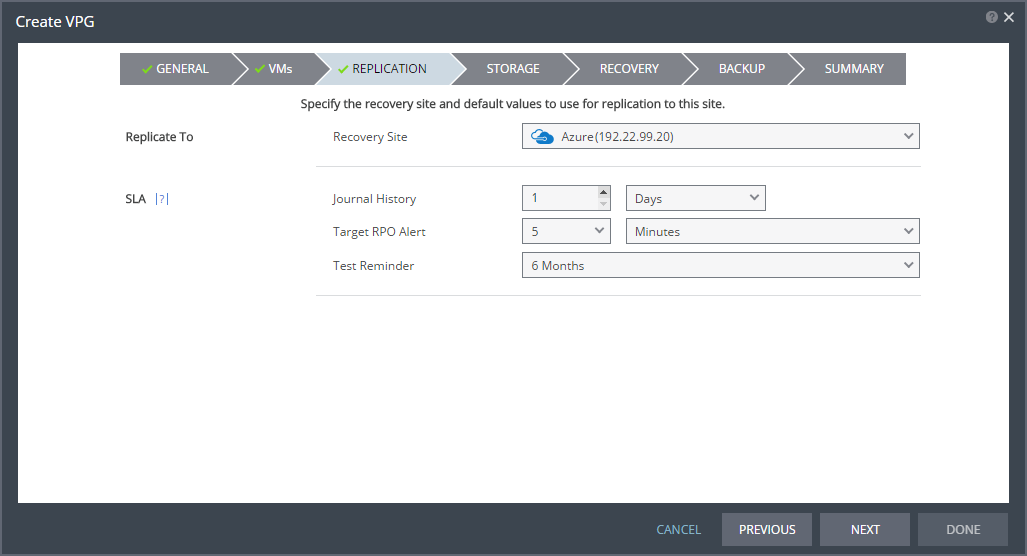
The REPLICATION step is displayed.
Note: If the protected site is paired with only one recovery site, the recovery step is displayed with the Recovery Site field automatically filled in and defaults set, as shown below.
6. Specify the recovery site.
Recovery Site – The site to which you want to recover the virtual machines. After specifying the recovery site, other fields are displayed.
Note: Steps that do not require input are marked with a check mark. You can jump directly to a step that has been marked with a check mark to edit the values for that step. Every step must be marked with a check mark before you can click DONE to create the VPG.
You cannot select a recovery site if any of the virtual machines you selected are already in VPGs that recover to that site.
ZORG – If the site is defined in Zerto Cloud Manager, you specify the name used by the cloud service provider to identify you as a Zerto Organization, ZORG. For details about Zerto Cloud Manager, refer to Zerto Cloud Manager Administration Guide
7. When the Zerto Cloud Manager is used, select the service profile.
Service Profile – The name of the service profile to use which determines the VPG SLA settings for the group, which apply to every virtual machine in the group. To change the VPG SLA settings, select the Custom Service Profile.
8. If the VPG SLA settings are editable, when the Zerto Cloud Manager is not used or when a Custom service profile is available, specify these settings for the group, which apply to every virtual machine in the group.
Journal History – The time that all write commands are saved in the journal. The longer the information is saved in the journal, the more space is required for each journal in the VPG. You can select the number of hours from 1 to 24 or the number of days from 2 to 30.
Target RPO Alert – The maximum desired time between each automatic checkpoint write to the journal before an alert is issued. To increase the value, move the slider right; to decrease the value, move the slider left.
Test Reminder – The time recommended between testing the integrity of the VPG. A warning is issued if a test is not done within this time frame.
9. Click NEXT.
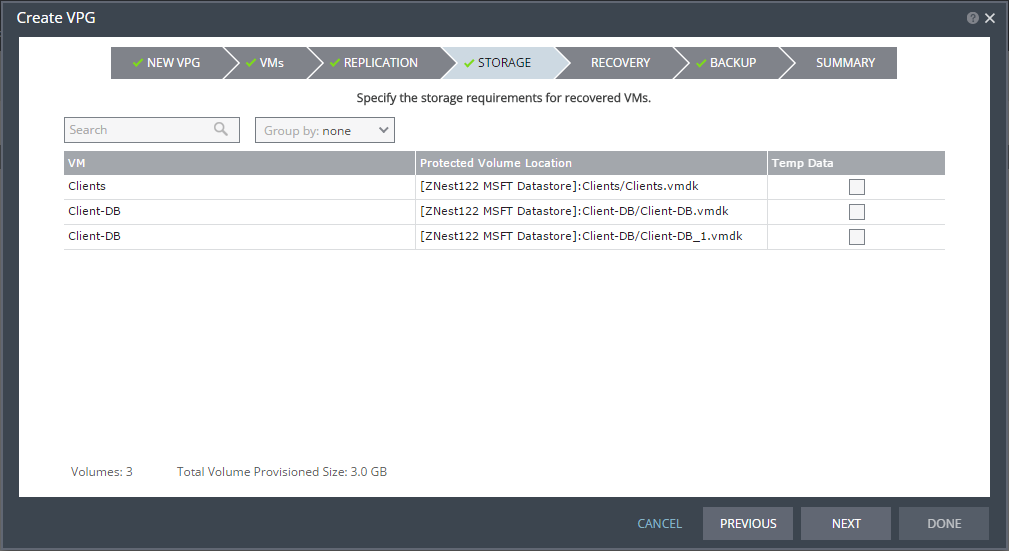
The STORAGE step is displayed. By default the storage used for the virtual machine definition is also used for the virtual machine data. For each virtual machine in the VPG, Zerto Virtual Replication displays its storage-related information.
10. Specify whether the protected volume is a temp data disk.
Temp Data – If the virtual machine to be replicated includes a temp data disk as part of its configuration, mark the recovery disk for this disk as a temp data disk. In this case, data is not replicated to the temp data disk after initial synchronization.
11. Click NEXT.
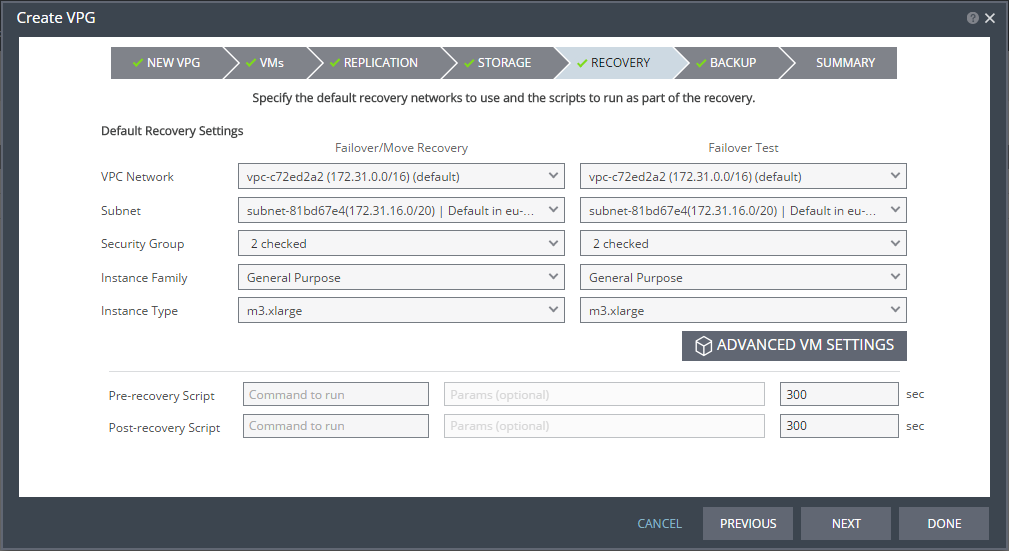
The RECOVERY step is displayed. Recovery details include the networks, network security group, instance family, and instance size to use for failover, move, and testing failover, and whether scripts should run as part of the recovery process.
Note: Steps that do not require input are marked with a check mark. You can jump directly to a step that has been marked with a check mark to edit the values for that step. Every step must be marked with a check mark before you can click DONE to create the VPG.
12. Select recovery settings for failover/move and failover testing.
VNet – The virtual network dedicated to your Azure subscription.
Subnet – The subnet or the VNet network.
Network Security Group – The Azure network security to be associated with the virtual machines in this VPG. You can associate one network security group with the virtual machines. The NIC will be associated with the network security group defined at the virtual machine level.
Instance Family – The instance family from which to select the size. Azure instance families are optimized for different types of applications. Choose the instance family appropriate for the application being protected in the VPG.
Instance Size– The instance size, within the instance family, to assign to recovered instances. Different sizes within an instance family vary, for example in a number of cores, RAM, and local storage size. Choose the instance size appropriate for the application being protected in the VPG. The price per instance is related to the instance configuration.
13. For additional settings, click ADVANCED VM SETTINGS.
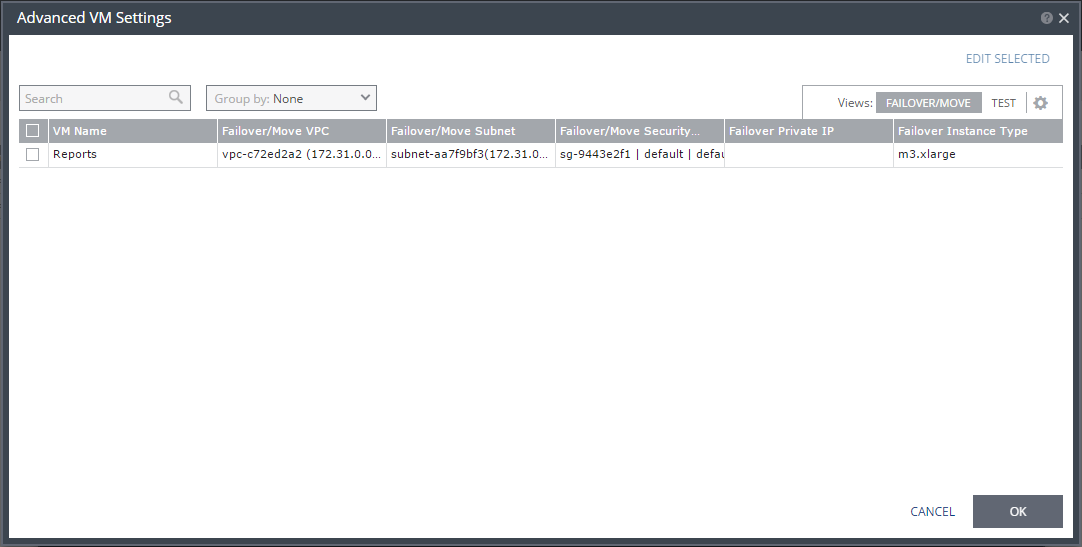
The Advanced VM Settings dialog is displayed, which shows the recovery network settings for failover and move for virtual machines in the VPG. You can see the recovery network settings for failover tests by clicking TEST.
14. If you want to edit information in one field, click the field and update the information. If you want to edit information for several virtual machines at the same time, select the virtual machines and click EDIT SELECTED.
The Edit VM Network dialog is displayed.
15. Update the values for VNet, subnet, security group, instance family, instance size, and private IP as necessary.
Only private IPs specified for Windows machines are assigned during a recovery operation. For Linux machines, the IP is assigned from the specified subnet range.
Clearing the values in the Private IP field results in an IP being automatically assigned from the subnet range during a recovery operation.
Refer to the
Zerto Virtual Replication Interoperability Matrix for the list of operating systems for which Zerto supports Re-IPing.
16. Click OK twice to return to the main page of the RECOVERY step.
17. Enter the name of the script to run in the Command to run text box. You can then enter details about the script.
Pre-recovery Script – The information about a script that should run at the beginning of the recovery process.
Post-recovery Script – The information about a script that should run at the end of the recovery process.
For both types of scripts, enter the following information:
Text Box | Description |
Command to run | The full path of the script. The script must be located on the same machine as the Zerto Virtual Manager for the recovery site. |
Params | The parameters to pass to the script. Separate parameters with a space. |
Timeout | The time-out, in seconds, for the script to run. If the script runs before executing a failover, move, or test failover, and the script fails or the timeout value is reached, an alert is generated and the failover, move, or test failover is not performed. If the script runs after executing a failover, move, or test failover, and the timeout value is reached, an alert is generated. The default time-out value is specified in Performance and Throttling tab in the Site Settings dialog. |
18. Click NEXT.
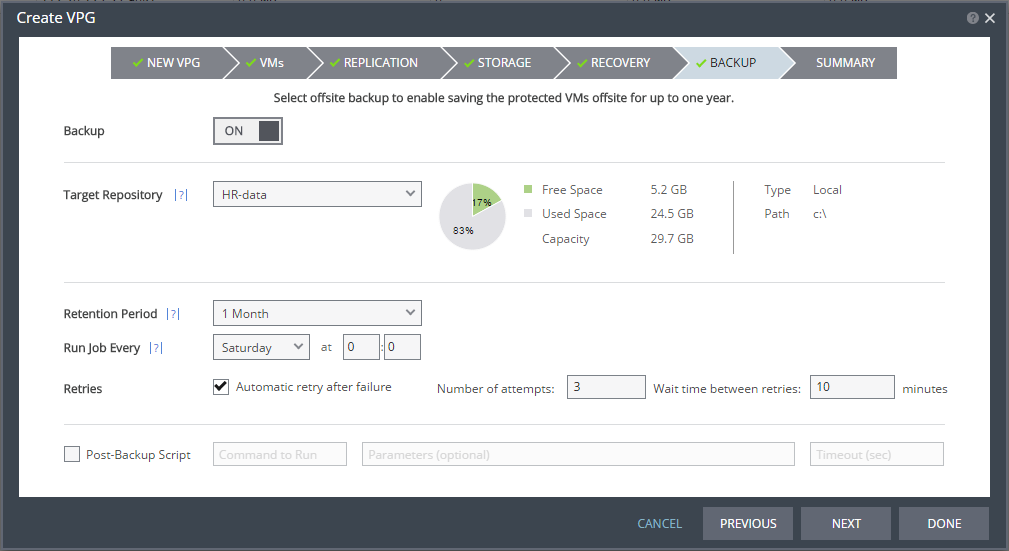
The BACKUP step is displayed. Backup properties govern the VPG backup, including the repository where the backups are saved. Backup extends the ability to recover virtual machines in a VPG for up to one year.
19. By default, backup is off. If you do not want to change this value, go to step
31. Otherwise, toggle OFF to ON and enter the following information:
Target Repository – The name of the repository where the offsite backups are written. Repositories are configured via the
SETUP tab as described in
Setting Up Offsite Backups.
Retention Period – The length of time to keep offsite backups, up to a maximum of one year. For details of how this affects the number of backups saved, see
Offsite Backups.
Run Job Every – The day and time to start the backup.
Retries – Whether to rerun the backup job automatically if the job fails. If you select this option, you must also define the number of retries that will be attempted and the time to wait after a job fails before running the backup job again.
Post-Backup Script – The information about a script that should run at the end of the recovery process. Enter the following information:
Text Box | Description |
Command to run | The full path of the script. The script must be located on the same machine as the Zerto Virtual Manager for the recovery site. |
Parameters | The values of parameters to pass to the script. Separate parameters with a space. |
Timeout | The time-out, in seconds, for the script to run. If the timeout value is reached, an alert is generated. The default time-out value is specified in the Performance and Throttling tab of the Site Settings dialog. |
Note: You cannot restore a backup in AWS.
20. Click NEXT.
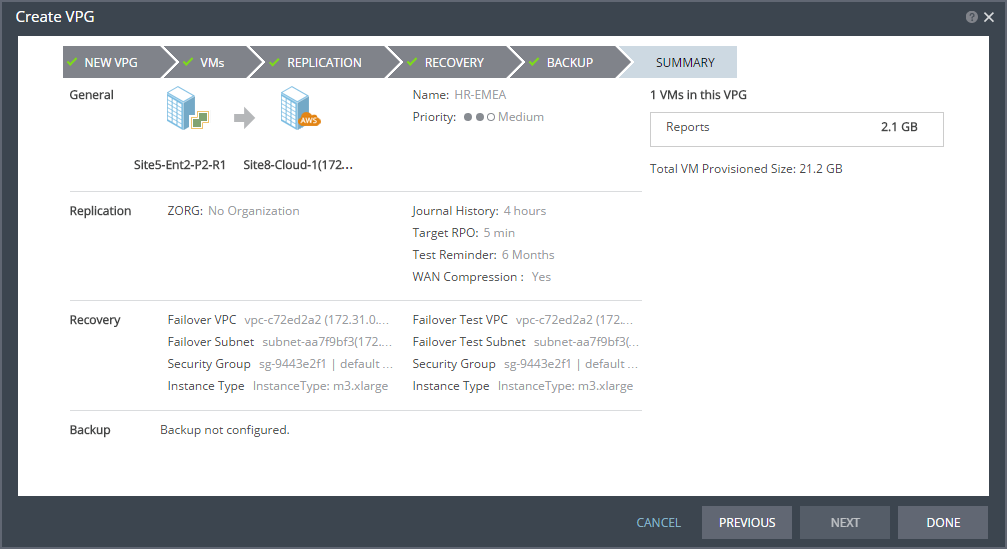
The SUMMARY step is displayed. It shows the VPG configuration that you defined in the previous steps.
21. Click DONE.
The VPG is created.
For details of what happens after creating the VPG, see
What happens After the VPG is Defined.