Installing the VSS Agent
The Microsoft Volume Shadow Copy Service (VSS) enables taking manual or automatic backup copies or snapshots of data, even if it has a lock, on a specific volume at a specific point-in-time over regular intervals. This ensures not just that the data is crash consistent but also application consistency if recovery is needed.
Zerto Virtual Replication enables adding checkpoints to the journal that are synchronized with VSS snapshots.
To use Zerto Virtual Replication with VSS to ensure application consistency you must install the ZertoVssAgent on every virtual machine that uses VSS and that you want to protect with Zerto Virtual Replication. The ZertoVssAgent is available from Zerto Ltd. in both 32-bit and 64-bit versions. You can install the ZertoVssAgent on the following supported Windows operating systems:
32-Bit Operating Systems | 64-Bit Operating Systems |
Windows Server 2003 SP2 | Windows Server 2003 SP2 |
| Windows Server 2008, all versions (SPs and R2) |
| Windows Server 2012, all versions (SPs and R2) |
To install the ZertoVssAgent:
1. Run either ZertoVss32Agent.msi or ZertoVss64Agent.msi on every virtual machine that uses VSS and that you want to protect with Zerto Virtual Replication, where ZertoVss32Agent.msi is for 32-bit Windows operating systems and ZertoVss64Agent.msi is for 64-bit Windows operating systems.
2. Follow the wizard through the installation.
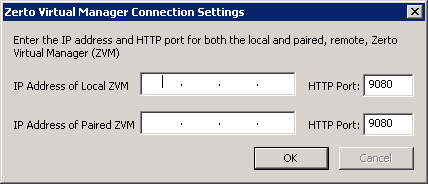
The Zerto Virtual Manager Connections Settings dialog is displayed.
3. Specify the IP address and HTTP port number for the Zerto Virtual Managers managing the protection of the virtual machines, both for the local site and, optionally, for the paired, remote site. If the same vCenter Server is used both for protecting and recovering virtual machines, specify the IP address and HTTP port number for the single Zerto Virtual Manager installed.
Note: The default HTTP port number when Zerto Virtual Replication is installed is 9080.
If you enter a wrong IP address or port you can correct the address or port after the installation completes by editing the ZertoVssAgentGUI.exe.conf file in the ZertoVssAgent folder under the folder where the ZertoVssAgent is installed, for example, C:\Program Files (x86)\Zerto.
4. Click OK.
The ZertoVssAgent is installed and the Add VSS Checkpoint is placed on the desktop. The agent runs as a Windows service, ZertoVssprovider.
For more details about the ZertoVssAgent, see the Zerto Virtual Manager Administration Guide.