Settings > Email
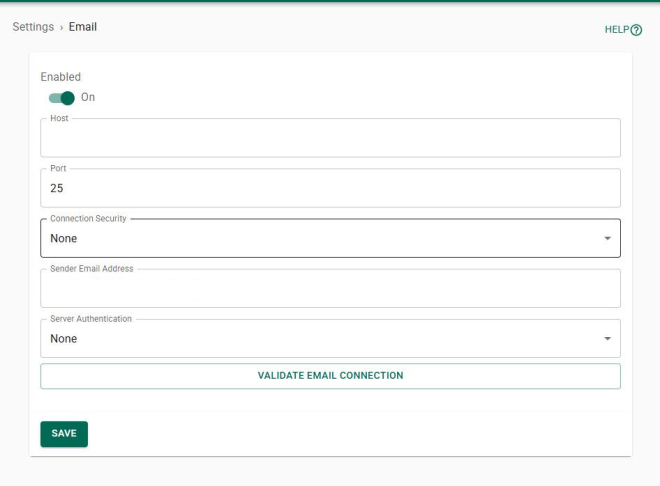
When a recipient's email address has been added to a report's definition (On-Access Report, On-Demand Report, Endpoint Status Report and/or Threat Report), they can be sent a PDF of the report via email. Use these settings to configure the required email settings.
How to Get There
In the Powertech Antivirus Navigation Pane, choose Email Settings.
Options
Enabled; Off • On
Toggle this switch to Off to disable email messages, or On to enable them.
Host
This is the host name of your email server.
Port
This is the port used by your email server.
Connection Security
Use the drop-down menu to select the option controlling connection security. The following choices are available:
-
None (this is the default)
-
START/TLS
-
SSL/TLS
Sender Email Address
This is the email address that will appear in the "From" field of the recipient's message.
Server Authentication
Use the drop-down menu to select the method of server authentication to be used.
-
None (this is the default)
-
Username and password. The following fields become available:
-
Username
-
Password
-
-
Office 365. The following fields become available:
-
Client ID
-
Client Secret
-
Username
-
Tenant ID
-
Validate Email Connection
Use this button to test the email server connection. If the server requires validation, the specified User Name and Password or Office 365 Credentials are tested.