Track Status for Each Item Crawl
About
The ability to track status for individual items when crawling gives you insights into different documents during crawls:
- Which documents were picked up by the crawl?
- What is the status of those documents? (Success, Fail, Warning, Delete)
- What was the reason for failures?
- Where did the failure happen (Connector, Target, CEWS)?
- What was the error message?
Tip: Knowing the answers to some or all of these questions enables you to solve problems, troubleshoot issues, and manually set an individual document or folder to be re-crawled on the next (scheduled) incremental crawl.
User Interface
The crawl log is displayed on a separate page and can be opened from two places:
- The Actions menu on the Content Sources page.
- The Actions menu on the Tasks page.
If a page is opened for a content, then all items can be checked stored in the search index.
If it was opened for a job, then only those items will be displayed which were picked up by that crawl job.
Crawl Overview Information
- Content: The selected content/job is shown in this field at the top of page.
- Crawl: Crawl status is shown in this field.
- Statistics
- Documents with errors
- Documents with warnings
- Documents without messages
Table - Actions
- View Items: Opens the details tab and filters the items to the specific message.
- Recrawl All: Sets all items containing the message to re-crawl on next incremental. This can include folders as well as documents.
- Recrawl: Sets the selected document or folder to re-crawl on next incremental crawl. This can include folders as well as documents.
- Test: Starts test bench for the selected item.
Summary Tab
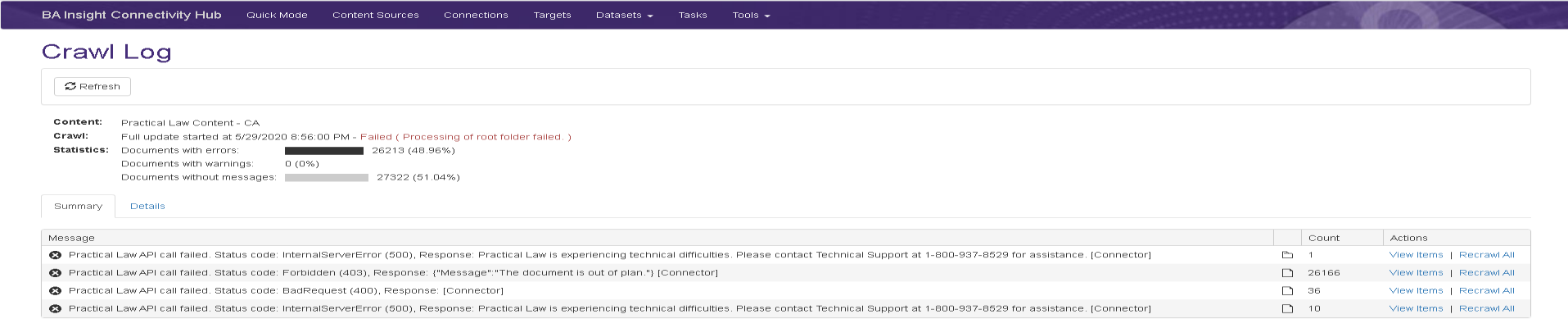
An example of a successfully run crawl is shown below with the "Summary" tab open.
Displayed in the table columns includes the following:
- Message: The status of the items captured by the crawl. This can include folders as well as documents.
Example status messages include:- (Success): "Item was successfully processed without any errors or warnings"
- (Time Out): "A call to the source system API timed out"
- (No content): "Document has no content"
- (Server not responding): "Elastic Server is not responding"
- (Unknown users/groups): "Unknown users or groups in ACL"
- (Processing failed): "Processing of some metadata failed"
- Untitled: Icons in this column indicate whether the status message applies to a folder or file
- Count: The number of items that correlate to each message status
- Actions: Actions available for each the items contained in each message status.
Details Tab
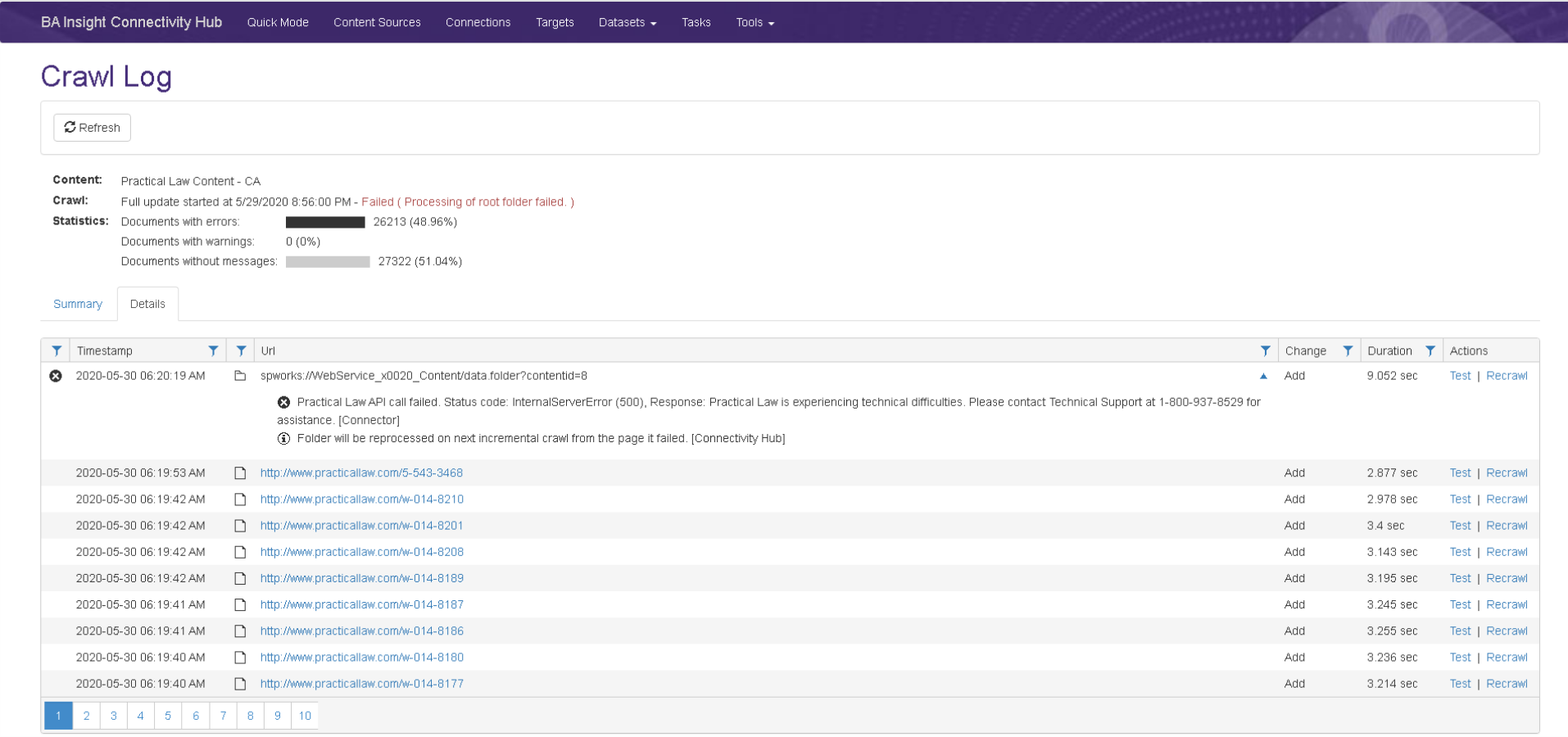
An example of a successfully run crawl is shown below with the "Details" tab open.
Displayed in the table columns includes the following:
- Status: Icon indicating success or failure.
- Timestamp: Start of processing in date/time format.
- Type: Indicated by an icon, such as document, folder, etc.
- Url: Address or path of item
- Change Type: Change to index: whether document was added, etc.
- Duration: How much time elapsed to process the item
- Actions: Actions available the item. See "Table - Actions" above.