
Many HMH products ordered by your organization are automatically made available to teachers and students across your schools. By default, some products can be accessed by teachers and students in any district schools, while others are only given access in schools that match the product’s grade band. As an administrator, you can view a list of all your organization's products and assign/unassign access as needed.
If you want to view and assign Coachly licenses, see View and Assign Coachly Licenses.
Note: To renew subscriptions for your organization's products, contact Customer Service or your HMH Account Executive (AE).
1. In the banner, click the Licenses tab. The Licenses page appears. All the HMH products purchased by your organization appear on this page, displayed as individual cards.
2. Locate a specific product using any of the following options:
– Scroll through the alphabetical list of products.
– (If needed) Use the forward and back arrows to navigate from page to page.

– In the Filter by Discipline list, select a discipline. The product list narrows to show only products for the selected discipline.
Note: The number of products available for each discipline is listed on the filter.
– In the Filter by Grade list, select a grade. For products that are grade banded, the list narrows to show only products for the selected grades.
– In
the search field, type a product name or keyword and click the search
icon  . The product list narrows to all products matching
your search criteria.
. The product list narrows to all products matching
your search criteria.

3. Click a title on a product card to view the licenses for that product. The Manage Access tab for the program appears showing the list of schools in your district and each school's access status to the selected program. For school administrators, you see the license status for your school.
Note: – If a district purchased a product, access to the product is automatically granted to all schools within the district that match the product grade band. For example, when a district purchases Into Math K–5, access to the product is granted all users within the schools in the district that match K–5 grades.
– If a school purchased a product, access to the product is automatically granted to that one school, providing access to all users in that school. |
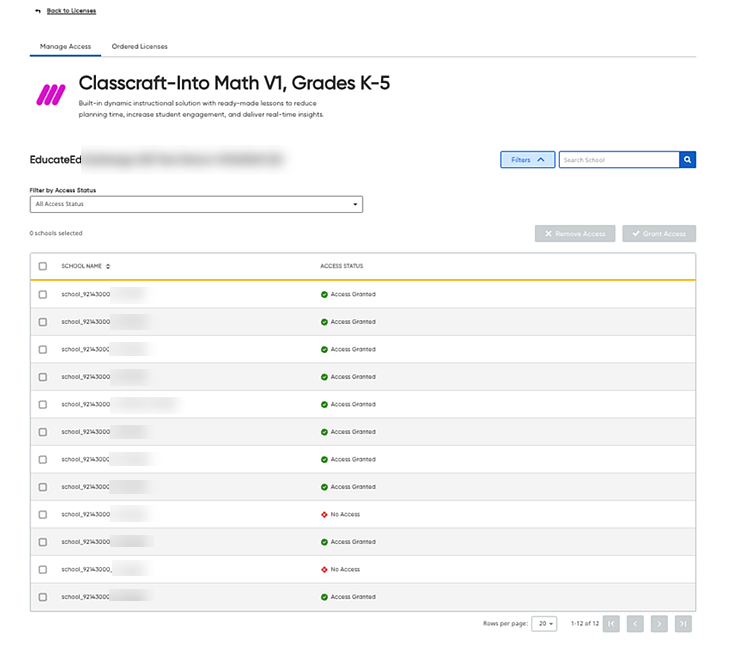
4. Locate a specific school using any of the following options:
– Scroll through the alphanumeric list of schools.
– Use the forward and back arrows to navigate from page to page.
– In the Filter by Access Status list, select a status. The school list narrows to show only schools with the selected status.
– In
the search field, type all or part of a school name and click the search
icon . The list narrows to all schools matching your
search criteria.
5. If necessary, change the program access of a school by doing the following:
a. Select the check box of the school to which you want to change the program access.
b. Click the Remove Access or Grant Access button above the list.
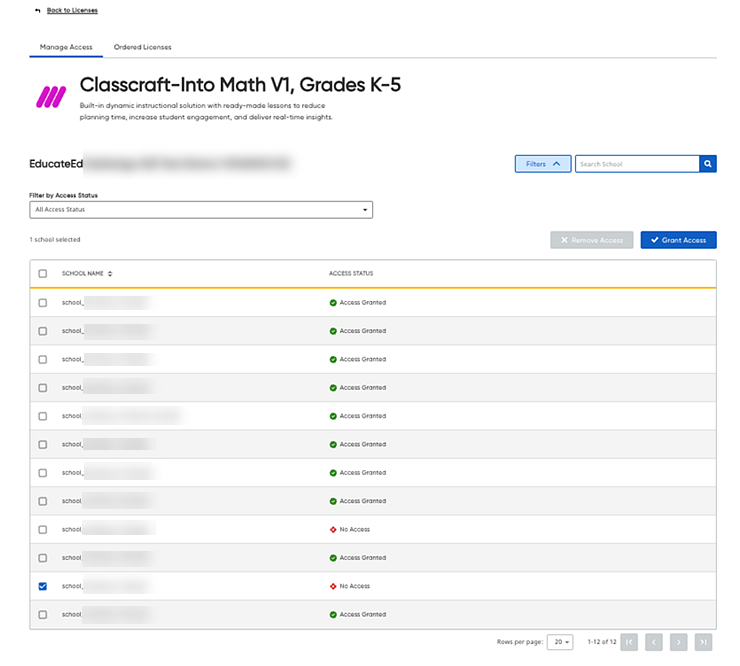
If you clicked Remove Access, the Remove Access dialog box appears.
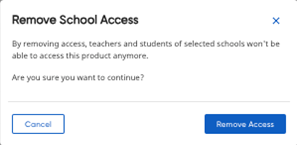
c. Click the Remove Access button to confirm the change.
The Access Status for the selected school changes (No Access or Access Granted) and a success message displays.
Note: For
some programs that are granted to all users in the district/school, the
options for selecting schools is not available because the license access
cannot be changed. (See example below.)

6. To view the district and school-level license status of the selected program, do the following:
a. Click the Ordered Licenses tab.
The Ordered Licenses tab displays a table showing each district/school's licenses for the selected program. The table breaks down the Teacher and Student licenses for each district or school by license total, start date, end date, and status.
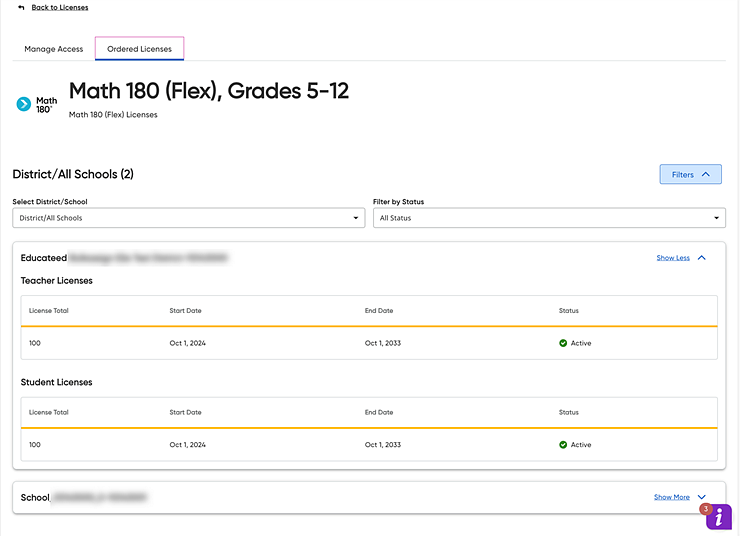
Note: If you are a district administrator, you can view district and/or school licenses across your district. If you are a school administrator, you can view school licenses ordered for your school only.
b. Use any of the options to filter or view the license information on this tab:
○ If available, use the Show More or Show Less arrows to view or hide the content for a district or school.
○ In the Select District/School list, select a district or school. The list narrows to show only licenses for the selected district/school.
○ In the Filter by Status list, select a status. The list narrows to show only licenses with the selected status.
See also: