Take Control Interaction
Touch is used to drag the mouse pointer on the remote device, in the same manner as a laptop touchpad. For example. tap once where the pointer is located to click, whilst a right-click is achieved through tap and hold.
The app supports multi-touch functionality, i.e. pinch the screen to zoom and two-finger drag to scroll, double tap and drag for drag & drop etc
|
|
|
|
|
|
|
|
Tap to click |
Tap and hold to click right |
Drag for drag & drop |
Pinch to zoom |
Two-finger drag to scroll |
Double tap and drag for mouse over |


As well as the above interaction options, there are a number of dedicated buttons to perform actions within the TeamViewer app.
|
|
||||||||||||||||||||||||||||||||||||||||


 Keyboard*
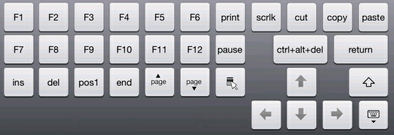
In addition to the defaults, the TeamViewer keyboard includes the ability to access special keys that are unavailable in the standard iOS mapping from the top menu.
|
Button |
Action |
|
|
Escape |
|
|
Tab |
|
|
Control |
|
|
Alternate |
|
|
Windows |
|
|
Displays an additional keyboard including: functions, cursors, insert, print etc
|
|
|
Close keyboard |




 App Settings**
The following settings are available for the app:
|
|