How to get Performance Monitoring Check up and running
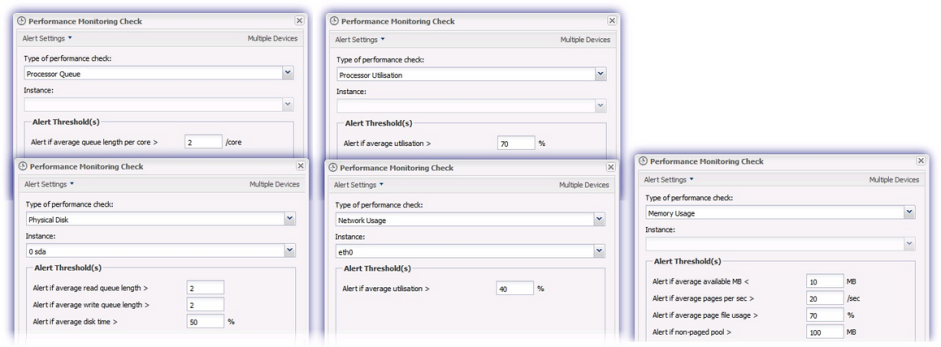
The check can be configured to query various indicators on the machine - Processor Utilization, Processor Queue Length, Memory Usage, Network Interface, Physical Disk - to identify performance bottlenecks or critical resources which may affect performance. An Alert is generated where these conditions are not met.
Dashboard Check configuration
Add
- Select the device in the north pane of the Dashboard
- Go to the Checks tab
- Click Add Check
- Choose Add 247 > Performance Monitoring Check
-
Select the performance indicator from the Type of performance check drop-down, populate the instance (where applicable) and enter the required Alert if threshold.
- Click OK to save and apply
|
Check |
Alert if |
Default value |
|
average available MB |
<10 MB |
|
|
average pages per second |
> 20 /sec |
|
|
average swap usage |
70% |
|
|
non-paged pool |
> 100MB |
|
|
average utilization |
> 40% |
|
|
average read queue length |
> 2 |
|
|
average write queue length |
> 2 |
|
|
average disk time |
> 50% |
|
|
average queue length per core |
> 2 /Core |
|
|
average utilization |
> 70% |
Network Usage Check: includes an Autodetect Network Speed option, when unticked a speed per Mb/s value can be entered.
Note, where the required files do not exist the Check will fall back to ethtool, as such ethtool is automatically installed on the device.
Due to the information returned from the network driver, it may not be possible to gather the network usage statistics for some Virtual Machines. In these cases the check will return the message: Could not collect statistics
Edit
- Select the device in the north pane of the Dashboard
- Go to the Checks tab
- Select the target Performance Monitoring Check
- From the Check drop-down
- Click Edit Check (also available from the Check's right-click menu)
- Configure the settings
- Click OK to save and apply
Delete
- Select the device in the north pane of the Dashboard
- Go to the Checks tab
- Select the target Performance Monitoring Check
- From the Check drop-down
- Click Delete Check (also available from the Check's right-click menu)
- Enter the password you have logged into the Dashboard under to confirm removal
- Click OK to delete