Service Setup
A new cloud service can easily be added by navigating to the Services tab on the Dashboard when logged on to the Dashboard with an enhanced privileges account, Superuser or (non-Classic) Administrator level access, a login with the required App Control permissions enabled or the Agent Key (where Dashboard access is enabled)
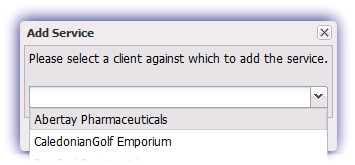
Click on the Add Service button to open the Select Client dialog.

Choose the Client you wish to add the service for from the Please select a client against which to add the service drop-down list and click OK.
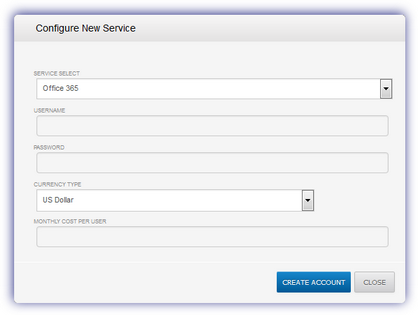
In Configure New Service choose the management service you wish to manage for this Client: Google AppsorMicrosoft Office 365 *
After populating the required fields, click Create Account to validate the entered credentials and begin syncing data.
Once synchronized, you can start managing users and viewing management service information.
Please be aware that the initial data synchronization of a management service may take up to ten minutes to complete.
Notes:
Google Apps: As part of the setup process App Control requires administrative access to the Google Account. This API access is configured via the one-time step actioned after clicking Create Account in Google's Request for Permissions page. To setup this access you must login to the Google Admin Console (for example: https://www.google.com/a/cpanel/<YOURDOMAIN.com>/) with an Apps for Business account (please do not use a personal account). It is imperative that you login to the Google Admin Console before enabling Google Apps integration for the Client.
|
Google Apps |
Required Fields |
||||
|
|
Currency Type drop-down
|
||||
|
Monthly Cost per user |
|||||
|
Please note that as part of the setup process App Control requires administrative access to the Google Account and this is configured via the one-time step actioned after clicking Create Account. Detailed information on this procedure is available here. |
|||||
|
Office 365 |
|
||||
|
|
Admin Account Username |
||||
|
Password |
|||||
|
Currency Type drop-down
|
|||||
|
Monthly Cost per user |

|
Notes |
|
Admin Account Username and Password |
|
Ensure the credentials entered in the Admin Account Username and Password are that an administratorfor the cloud service. Authentication will fail if a non-administrator login is used, for example a cloud service standard user or your Remote Management Dashboard login. |
|
The Admin Account Username should be in the form of an email address |
|
If the username appears correct but problems are still experienced when setting up the integration, please verify the entered Password corresponds to the selected cloud service administrator user. |
|
User Audit Report |
|
The User Audit Report - available from the Reports menu on the Dashboard - records when a service is added, edited or deleted under the Service for Client filter. |
|
Datacenters |
|
Please note that although we retrieve the Service information directly from the vendor, Google or Microsoft, for performance we temporarily cache this data in one of our datacenters (London for the EU, Dallas for US and Asia, Sydney for Australia) and only retain limited aggregate data. |