Notifications
|
|
|


The Notifications section contains a list of user and service issues for the selected backbone service.
Each notification contains its Severity ranking, Name (Type), ModifiedDate and time, the Source Service, summary Description and option to Resolve the message (remove from the notifications section and delete from the north pane notification count). Depending on the notification message the Description section may contain the option to open the backbone service's portal in a new tab or window via the View details link. Notifications are ordered by the date they were modified rather than the date they were originally posted and can be sorted by date from the Currently viewing drop-down: the last 7 days, the last 14 days, the last 30 days or All
A notification can fall into one of three severity categories:
|
Critical |
|
|
Warning |
|
|
Information |
After investigating a message you can Resolve the notification.
|
Action |
Action |
Result |
|---|---|---|
|
Resolve |
Notifications are resolved by clicking on the corresponding X in the Resolve column. To display resolved notification go to the Actions menu
|
Marking a notification as resolved removes the message from the Notifications tab and deletes it from the north pane notification count |
 then click the Show Resolved Notifications box and to hide resolved no
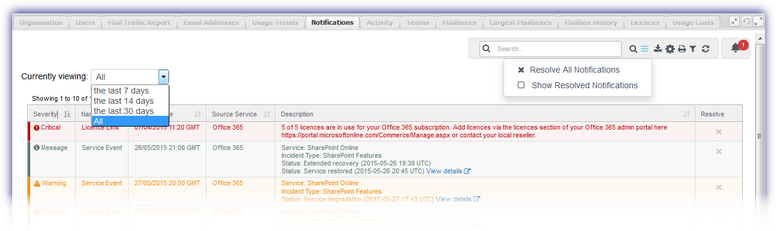
The following display and management options are available for this section.
| Icon | Option | |||||||||||||||||
|---|---|---|---|---|---|---|---|---|---|---|---|---|---|---|---|---|---|---|

|
Filter Data |
Open or close the selection Filter by clicking upon the funnel and select the required criteria. Please note to provide more targeted results the Filter may be used in conjunction with the Search feature.
|
||||||||||||||||
|
|
Actions |
X Resolve All Notifications: Mark all notifications as Resolved Show Resolved Notifications: Display notifications that were previously marked as resolved |
||||||||||||||||
|
|
Export |
Download the table as a CSV file |
||||||||||||||||
|
|
Configure |
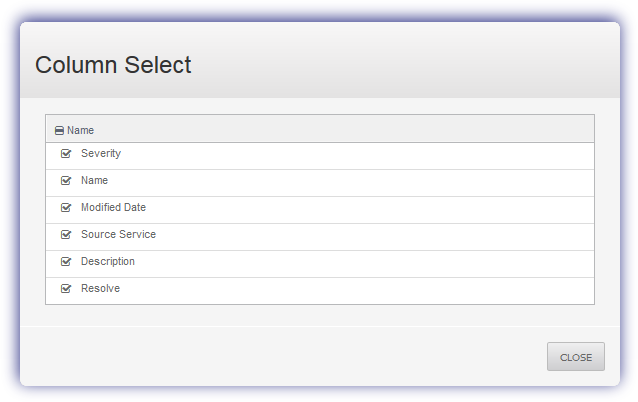
Open the Column Select dialog
|
||||||||||||||||
|
|
|
Opens the Users tab of the Dashboard in a new window ready for printing |
||||||||||||||||
|
|
Search |
Open or close the Search box by clicking upon the magnifying glass. Enter the search criteria and press return to dynamically display all matching results. Clear the search box by clicking the red X |
||||||||||||||||
|
|
Refresh |
Click to refresh the data in the selected tab |
||||||||||||||||
|
|
Alert |
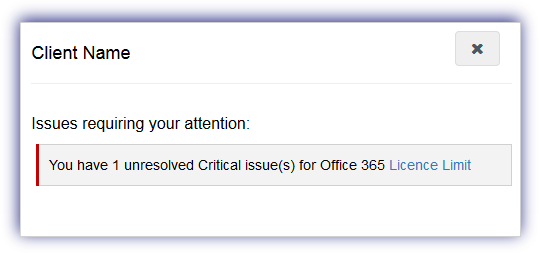
The notification alert button provides a visual indicator of the number of issues currently affecting the service requiring your attention and is based on the current highest severity level. Click the alert button to display information on all of the unresolved problems of this severity type and select the issue link to open the Notifications tab focused on these specific messages. Once finished in the notification alert dialog select X to close. Please note that the notification alert reflects the current highest level of severity. For example if the notification alert displays one critical issue, after resolving this issue any warning level messages are then displayed.
|
||||||||||||||||




Notification Type
The types of notification reported on include:
|
Type |
Severity |
Note |
|---|---|---|
|
License limits |
||
|
All licenses are in use |
Critical |
No licenses are available to assign to users. Purchase additional licenses to manage more users. |
|
90% of the license subscription is used |
Warning |
Notifies when within 10% of your license limit and/or when you have only one license remaining to be assigned. It is recommended to purchase more licenses before all licenses are used. |
|
Idle Accounts |
||
|
Account was not logged into for more than 30 days |
Warning |
Notifies where a user has not logged in an account for 30 or more days. This account may be a candidate for removal so that you can free up a license. |
|
Email usage |
||
|
100% of the user's allotted mailbox space is used |
Critical |
Notifies when a user is at their mailbox quota limit. End user also receives an email stating that they need to free up space by deleting any items they no longer need. User should also empty the Deleted Items or Trash folder since this is part of the allotted mailbox space. |
|
95% of the user's allotted mailbox space is used |
Warning |
Notifies when a user approaches their mailbox quota limit. End user will also receive an email stating they need to free up space by deleting any items they no longer need and then emptying the Deleted Items or Trash folder. |
|
Cloud service events |
||
|
Service outages or interruptions |
Critical or Warning |
Notification when we detect that one of the cloud services is experiencing a disruption to service. |
A notification is used for any occurrence of the failure until the pass condition is met. For example if a License Limit notification is triggered this notification will be used for any subsequent infringements, rather than create a new notification for each occurrence.
As such the following will occur where a new instance of the failure that created the notification is reported. Where the notification was previously Viewed, to indicate this new failure the eye icon  appears in the Viewed column against the notification. Where the notification was previously Resolved, the notification will reappear in both the Notifications section and in the north pane notification count.