Mailboxes
|
|
|


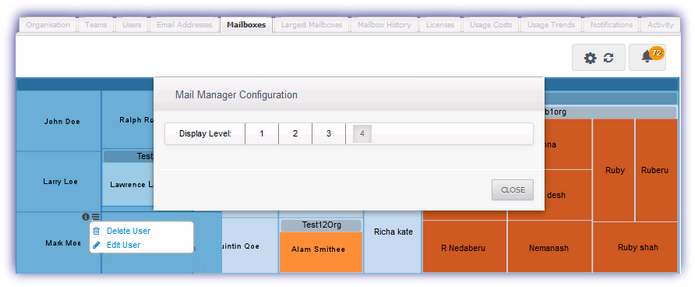
The Mail Manager displays the relational size of all mailboxes simplifying the task of identifying those users who require larger quotas or those that are consuming abnormally large volumes of data. The larger the mailbox box the larger the amount of data consumed by the mailbox.
Each users border is color coded with each color indicating an organization the user is a member of. As such the level of organizational detail displayed can be specified by choosing the Display Level from the Mail Manager dialog access via the Configure button. 
There are four Display Levels available:
|
Level |
Information |
|
1 |
Account, Users |
|
2 |
Account, Domains and Users |
|
3 |
Account, Domains, first level Organizations and Users |
|
4 |
Account, Domains, first & second level Organizations and Users |
|
Information on any organizational level deeper than four is not displayed. |
|
In addition to the option to view additional information by clicking on the mailbox, organization or account information button , each mailbox also has the following Advanced Actions available under the
  button: Delete User or Edit User.
Please note, when a user is deleted they will continue to be displayed in the Mailboxes section but marked as Deleted User. Typically this state will automatically clear within 15 minutes when the delete action was successful. Information on this removal is available in the Activity Log once the action is complete, for example whether it was successful or the operation failed.
The following display option is available for this section.
|
Icon |
Option |
|
|
Open the Mail Manager Configuration dialog to set the Display level: 1 | 2 | 3 | 4 |
|
|
Click to refresh the data in the selected tab |
|
|
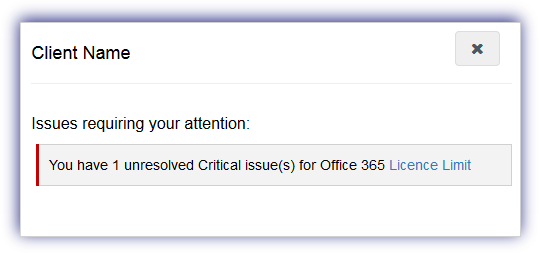
The notification alert button provides a visual indicator of the number of issues currently affecting the service requiring your attention and is based on the current highest severity level. Click the alert button to display information on all of the unresolved problems of this severity type and select the issue link to open the Notifications tab focused on these specific messages. Once finished in the notification alert dialog select X to close. Please note that the notification alert reflects the current highest level of severity. For example if the notification alert displays one critical issue, after resolving this issue any warning level messages are then displayed.
|