Licensees
|
|
|


Information on all users is returned in this section including their current state as well as license status.
The chart provides a graphical representation of the total user count including whether they are Active or Suspended. Click on either state in the graph to filter the table with those users matching this criteria, with this filter option also available under the funnel icon 
The associated table provides a detailed breakdown of each user and includes their Name, State (Active or Suspended), whether it is Licensed? (true or false) with the option to perform the following Actions:
|
Icon |
Option |
|
|
|
|
|


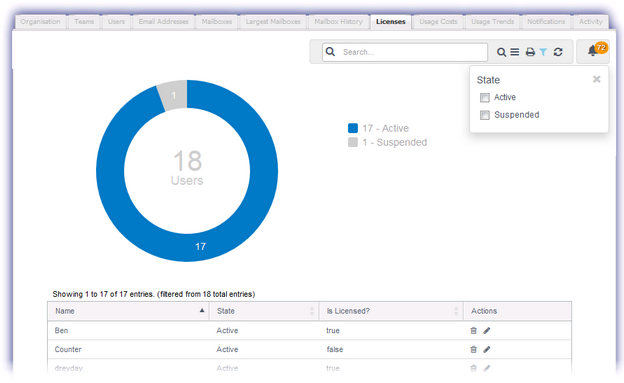
The following display and management options are available for this section.
|
Icon |
Option |
|
|
|
Filter Data |
Display Active or Suspended users |
|
|
Actions |
|
|
|
|
Opens the Users tab of the Dashboard in a new window ready for printing |
|
|
Search |
Open or close the Search box by clicking upon the magnifying glass. Enter the search criteria and press return to dynamically display all matching results. Clear the search box by clicking the red X |
|
|
Refresh |
Click to refresh the data in the selected tab |
|
|
Alert |
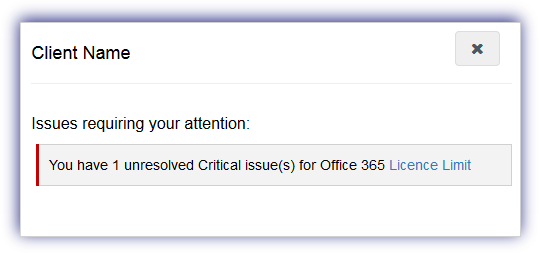
The notification alert button provides a visual indicator of the number of issues currently affecting the service requiring your attention and is based on the current highest severity level. Click the alert button to display information on all of the unresolved problems of this severity type and select the issue link to open the Notifications tab focused on these specific messages. Once finished in the notification alert dialog select X to close. Please note that the notification alert reflects the current highest level of severity. For example if the notification alert displays one critical issue, after resolving this issue any warning level messages are then displayed.
|