Adding a Data Recipe
Driverless AI lets you create a new dataset by modifying an existing dataset with a data recipe. (Refer to the Modify by custom data recipe section for more information.) This example shows you how to use the Live Code option to create a new dataset by adding a data recipe.
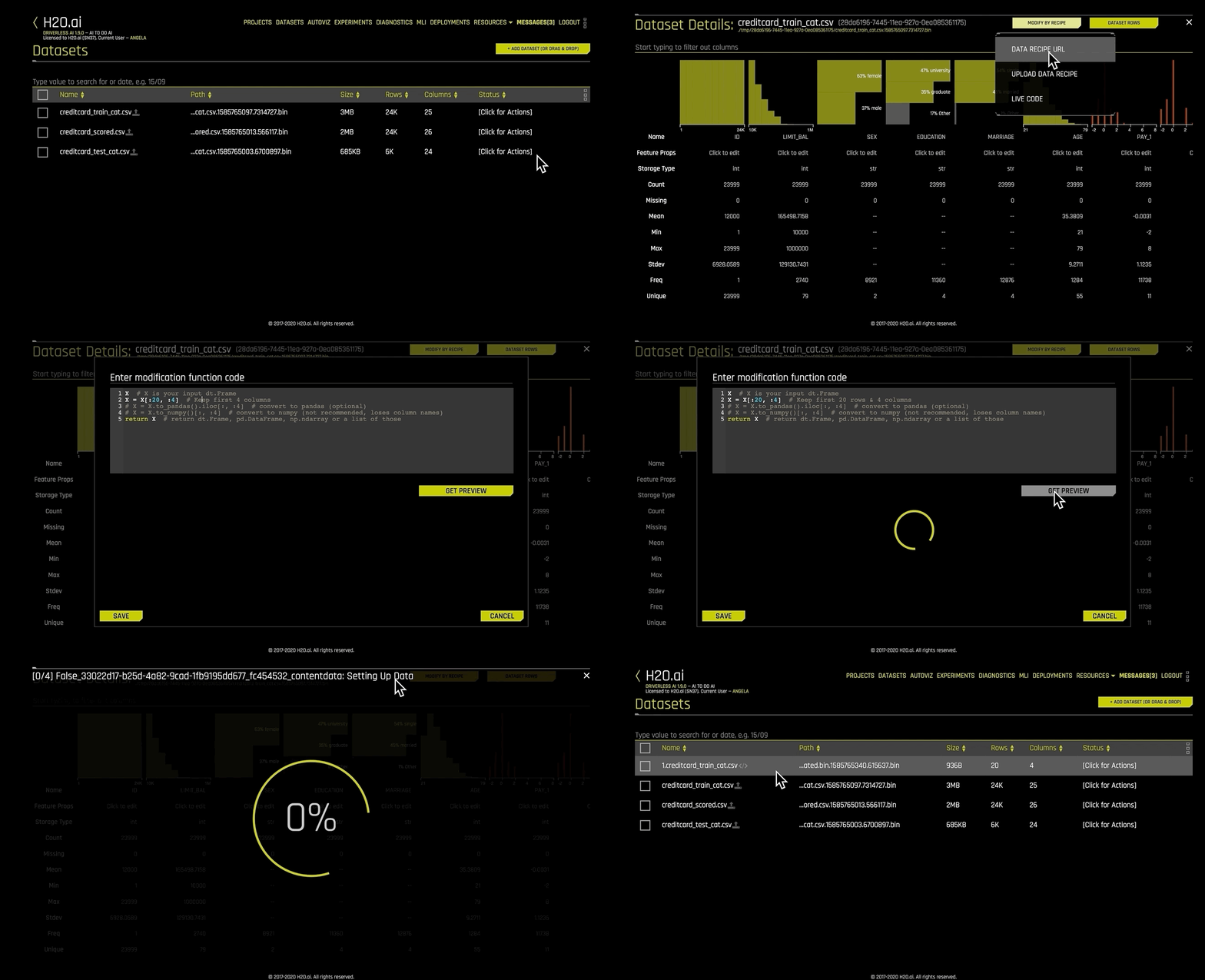
Navigate to the Datasets page, then click on the dataset you want to modify.
Click Details from the submenu that appears to open the Dataset Details page.
Click the Modify by Recipe button in the top right portion of the UI, then click Live Code from the submenu that appears.
Enter the code for the data recipe you want to use to modify the dataset. Click the Get Preview button to see a preview of how the data recipe will modify the dataset. In this simple example, the data recipe modifies the number of rows and columns in the dataset.
Click the Save button to confirm the changes and create a new dataset. (The original dataset will still be available on the Datasets page.)
Notes:
Instead of adding data recipe under datasets, data recipes can also be used within an experiment by adding the data recipe to included_datas Expert Setting in Recipe panel. Unlike the data recipe for datasets, data recipes added within experiment are included within the python scoring package. The mojo scoring package does not support data recipes, and so data recipes must be applied before making mojo predictions.