Interpreting a Model
Model Interpretations can be run on a Driverless AI experiment or on the predictions created by an External Model (i.e not a Driverless Model).
Using the Interpret this Model button on a completed experiment page to interpret a Driverless AI model on original and transformed features.
Using the MLI link in the upper right corner of the UI to interpret either a Driverless AI model or an external model.
Interpreting a Driverless AI Model
A completed Driverless AI model can be interpreted either from the MLI Page from the top main menu or from the Completed experiments Page.
Notes:
This release deprecates MLI experiments run in Driverless AI 1.8.9 and earlier. MLI migration is not supported for experiments from versions <= 1.8.9 i.e user cannot directly run interpretaions on a Driverless AI model built using versions 1.8.9 and earlier but can still view them if already built in those versions.
MLI does not require an Internet connection to run on current models.
Run Interpretations from MLI page
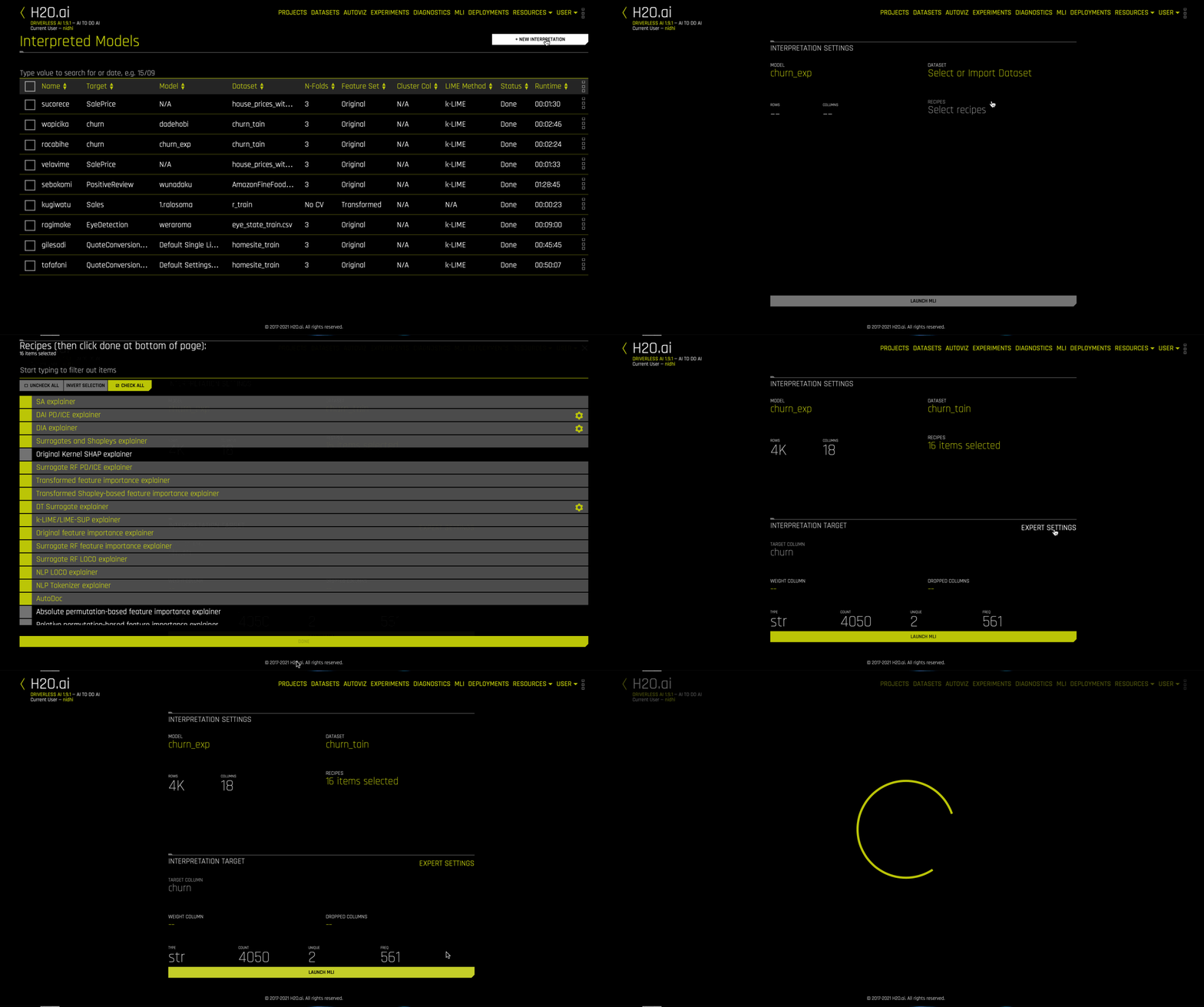
This method lets you run model interpretation on a Driverless AI model. This method is similar to clicking “Interpret This Model” on an experiment summary page but provides more control via the MLI expert settings and recipes.
Click the MLI link in the upper-right corner of the UI to view a list of interpreted models.
Click the New Interpretation button.
Select the dataset that was used to train the model that you will use for interpretation.
Specify the Driverless AI model that you want to use for the interpretation. Once selected, the Target Column used for the model will be selected.
Optionally specify the MLI recipes (including Autodooc) to run.
Optionally specify any additional MLI Expert Settings to use when running this interpretation.
Optionally specify a weight column.
Optionally specify one or more dropped columns. Columns that were dropped when the model was created are automatically dropped for the interpretation.
Click the Launch MLI button.
Run Interpretaion from Completed Experiment page
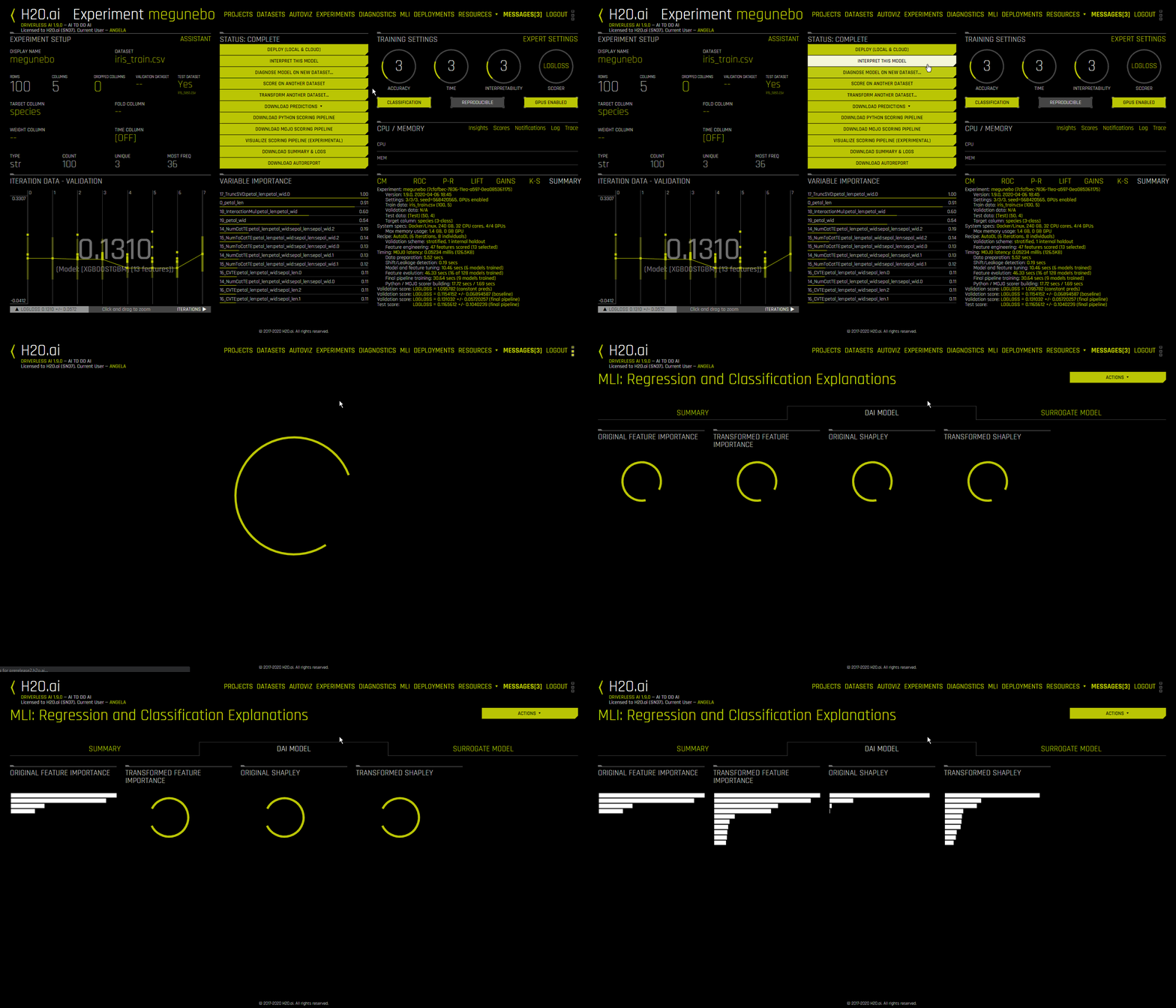
Clicking the Interpret this Model button on a completed experiment page launches the Model Interpretation for that experiment. Note that if you would like to control the MLI run via the expert settings or (custom) recipes for explainers, build the model from the MLI page.
The interpretation includes a summary, interpretations using the built Driverless AI model and the interpretations using Surrogate models(built on the predictions from the Driverless AI model). For details on the plots, see
The plots are clickable and interactive and the logs and artifacts can be downloaded by clicking on the Action button
For non-time-series experiments, this page provides several visual explanations and reason codes for the trained Driverless AI model and its results. More information about this page is available in the Understanding the Model Interpration Page section later in this chapter.
Interpreting Predictions from an External Model
Model Interpretation does not need to be run on a Driverless AI experiment. You can train an external model and run Model Interpretability on the predictions from the model. This can be done from the MLI page.
Click the MLI link in the upper-right corner of the UI to view a list of interpreted models.
Click the New Interpretation button.
Leave the Select Model option to none
Select the dataset that you want to use for the model interpretation. This must include a prediction column that was generated by the external model. If the dataset does not have predictions, then you can join the external predictions. An example showing how to do this in Python is available in the Run Model Interpretation on External Model Predictions section of the Credit Card Demo.
Specify a Target Column (actuals) and the Prediction Column (scores from the external model).
Optionally specify any additional MLI Expert Settings to use when running this interpretation.
Optionally specify a weight column.
Optionally specify one or more dropped columns. Columns that were dropped when the model was created are automatically dropped for the interpretation.
Click the Launch MLI button.
Note: When running interpretations on an external model, leave the Select Model option empty. That option is for selecting a Driverless AI model.
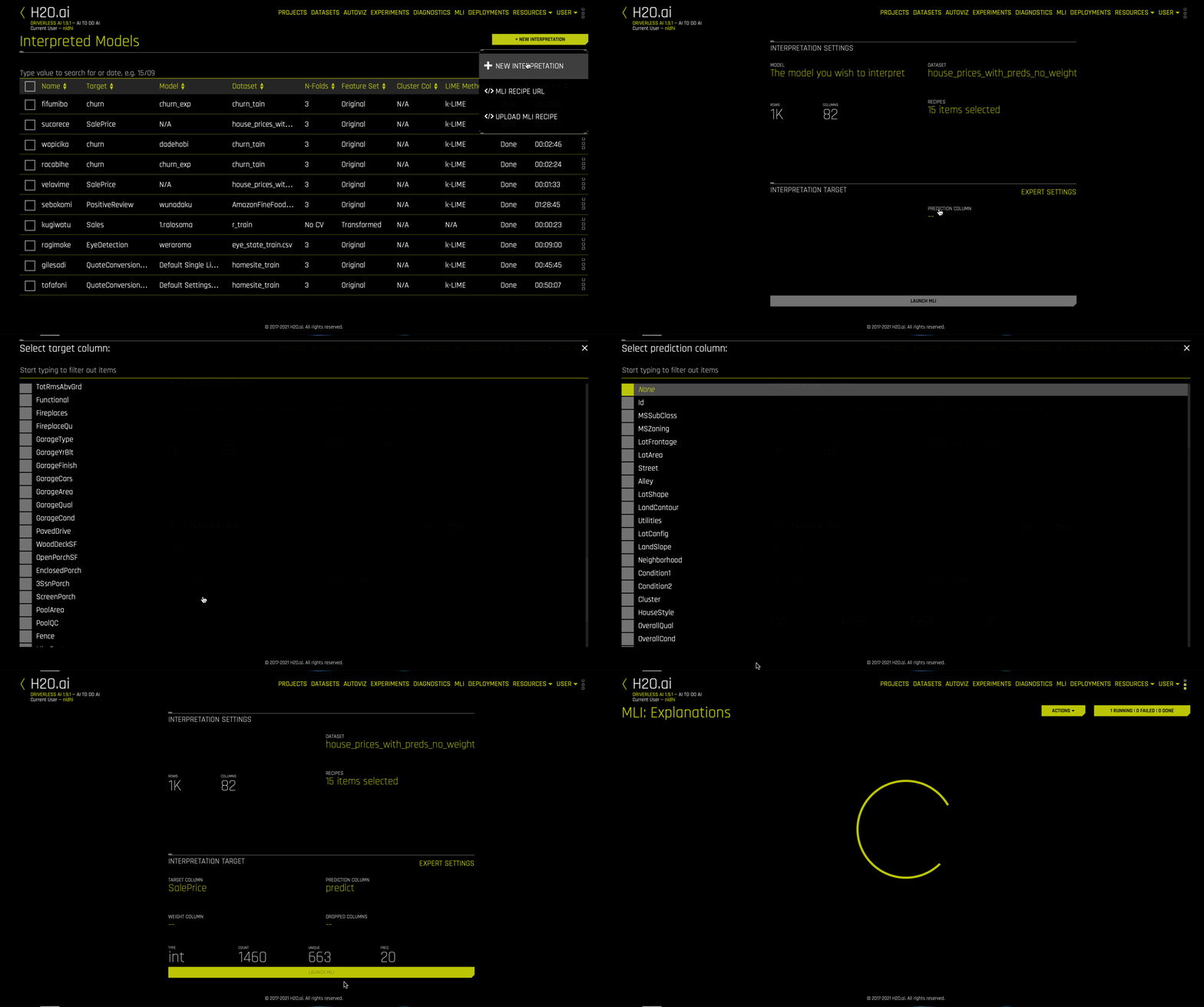
The genrated interpretation will include the plots and explantaions created using the surrogate models and a summary. For details, see
Recipes
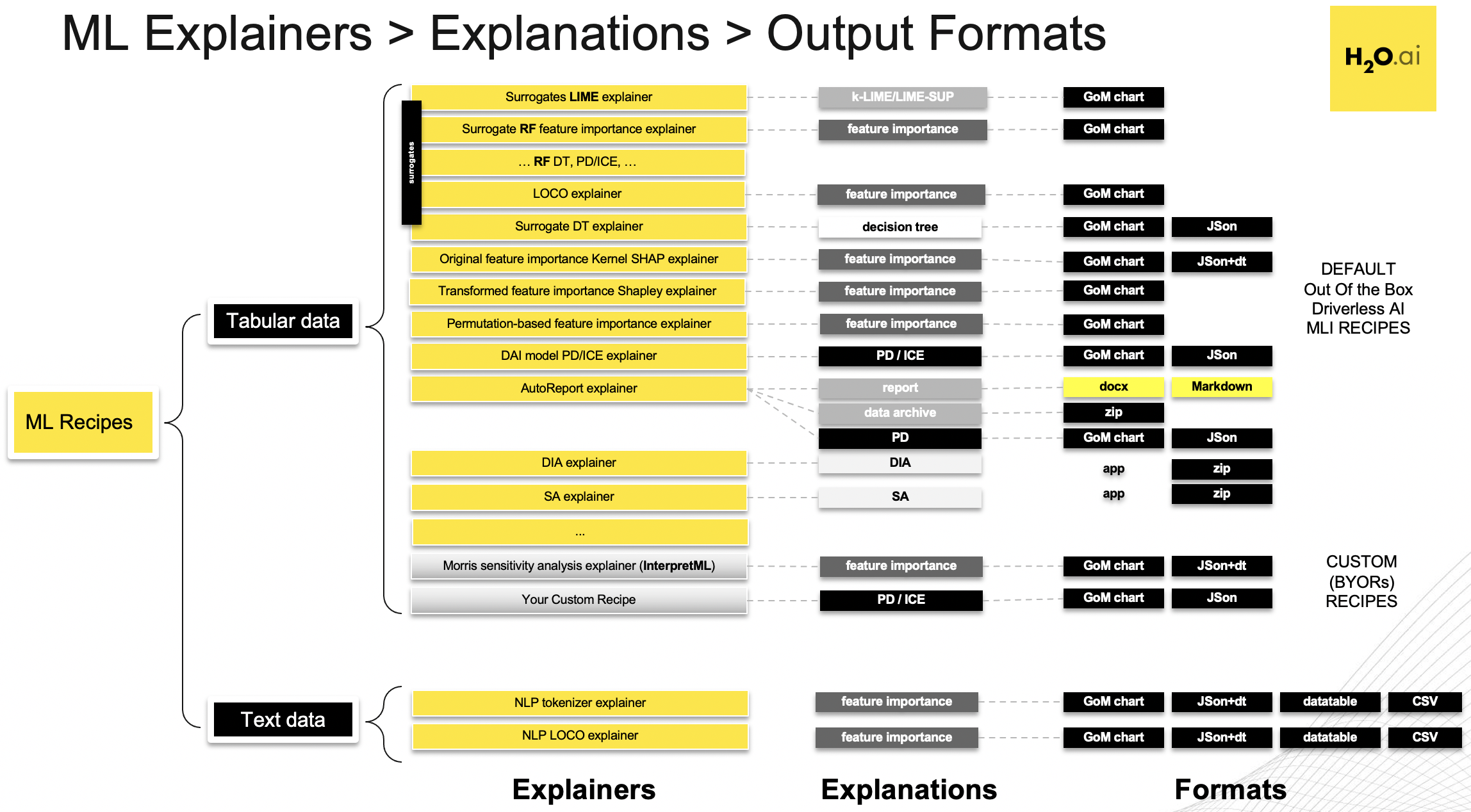
Driverless AI Machine Learning Interpretability comes with a number of out of the box explainer recipes for model interpretation that can be enabled when running a new interpretation from the MLI page. Details about the interpretations generated by these recipes can be found here.
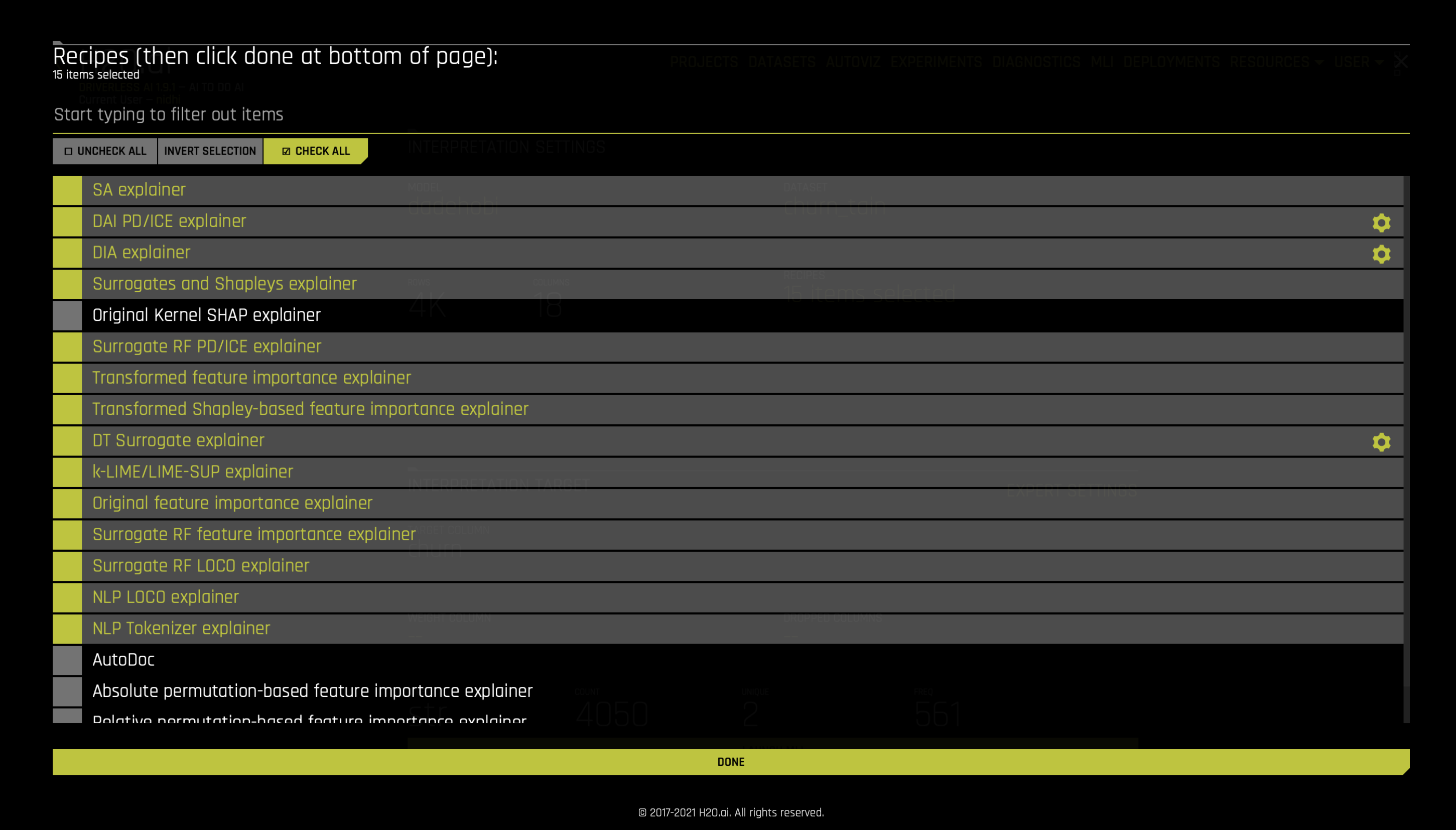
This recipe list is extensible, and users can create their own custom recipes. For more information, see MLI Custom Recipes.
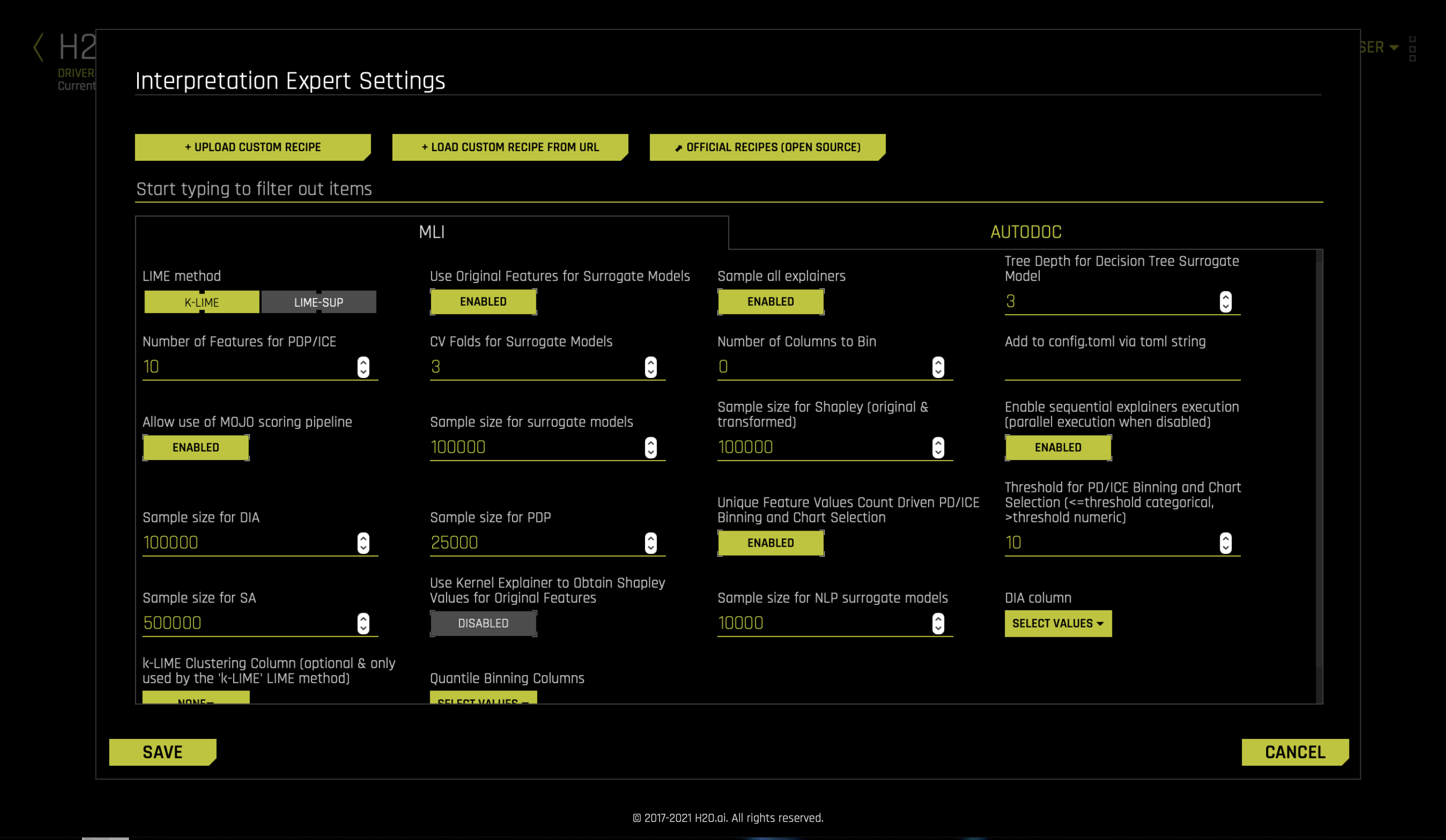
Interpretation Expert Settings
When interpreting from the MLI page, Driverless AI provides a variety of options in the Interpretation Expert Settings and also settings for specific recipes, that let you customize interpretations. Use the search bar to refine the list of settings or locate a specific setting.
Notes:
The selection of available expert settings is determined by the type of model you want to interpret and the specified LIME method.
Expert settings are not available for time-series models.
Expert Settings from Recipe page
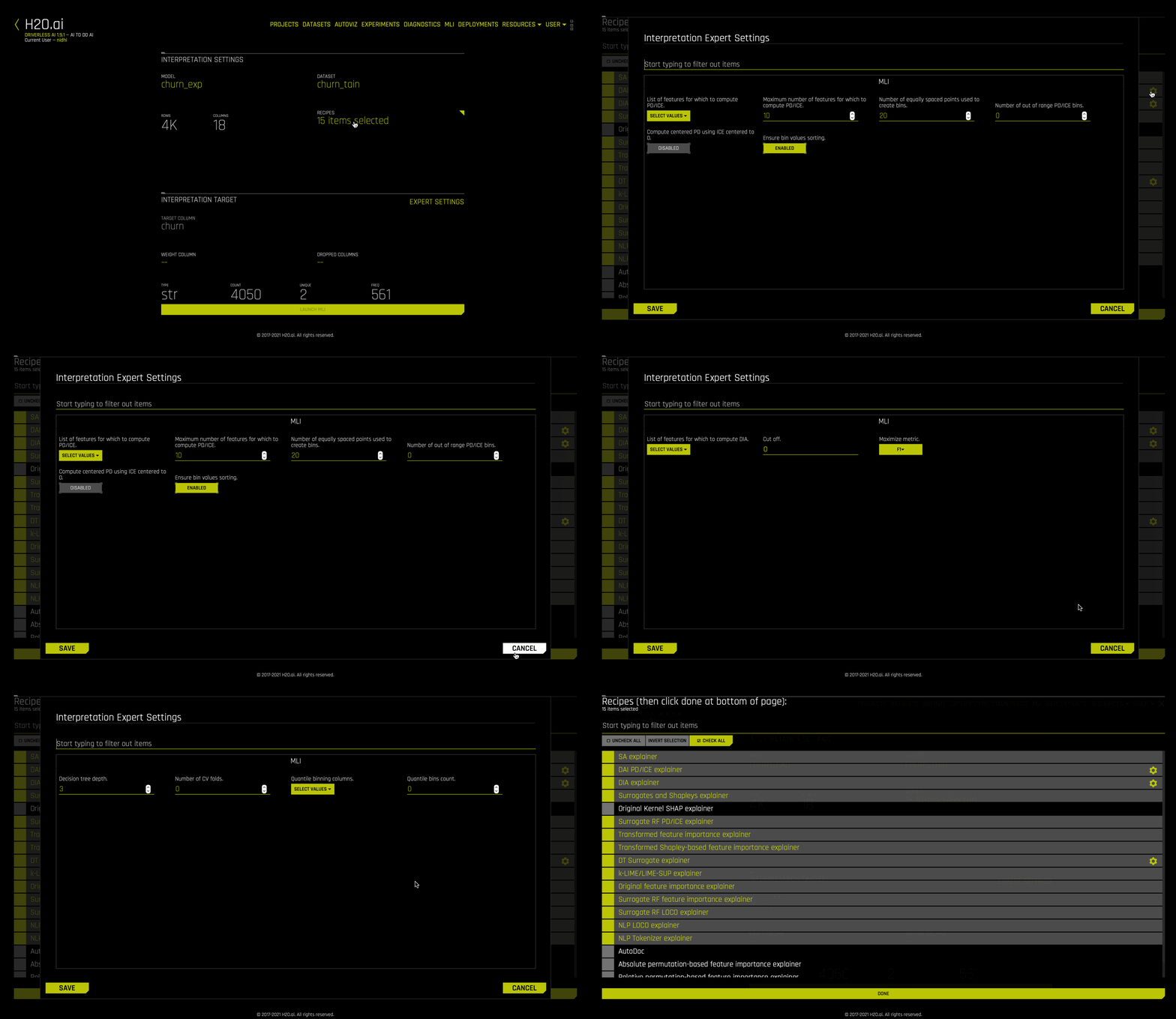
For some recipes like Driverless AI Partial dependance and ICE explainer, Disparate Impact Analysis (DIA) explainer and DT (Decision Tree) Surrogate explainer, some of the settings can be toggled from the recipe page. Also, enabling some of the recipes like Original Kernel SHAP explainer will add new options to the expert settings.
LIME Method
Select a LIME method of either KLIME (default) or LIME-SUP.
KLIME (default): creates one global surrogate GLM on the entire training data and also creates numerous local surrogate GLMs on samples formed from k-means clusters in the training data. The features used for k-means are selected from the Random Forest surrogate model’s variable importance. The number of features used for k-means is the minimum of the top 25% of variables from the Random Forest surrogate model’s variable importance and the max number of variables that can be used for k-means, which is set by the user in the config.toml setting for
mli_max_number_cluster_vars. (Note, if the number of features in the dataset are less than or equal to 6, then all features are used for k-means clustering.) The previous setting can be turned off to use all features for k-means by settinguse_all_columns_klime_kmeansin the config.toml file totrue. All penalized GLM surrogates are trained to model the predictions of the Driverless AI model. The number of clusters for local explanations is chosen by a grid search in which the \(R2\) between the Driverless AI model predictions and all of the local KLIME model predictions is maximized. The global and local linear model’s intercepts, coefficients, \(R2\) values, accuracy, and predictions can all be used to debug and develop explanations for the Driverless AI model’s behavior.LIME-SUP: explains local regions of the trained Driverless AI model in terms of the original variables. Local regions are defined by each leaf node path of the decision tree surrogate model instead of simulated, perturbed observation samples - as in the original LIME. For each local region, a local GLM model is trained on the original inputs and the predictions of the Driverless AI model. Then the parameters of this local GLM can be used to generate approximate, local explanations of the Driverless AI model.
Use Original Features for Surrogate Models
Specify whether to use original features or transformed features in the surrogate model for the new interpretation. This is enabled by default.
Note: When this setting is disabled, the KLIME clustering column and quantile binning options are unavailable.
Sample all explainers
Specify whether to perform the interpretation on a sample of the training data. By default, MLI will sample the training dataset if it is greater than 100k rows. (The equivalent config.toml setting is mli_sample_size.) This is enabled by default. Turn this toggle off to run MLI on the entire dataset.
Sample size for surrogate models
When number of rows are above this limit sample for MLI for training surrogate models. The default value is 100000.
Sample size for Shapley (original & transformed)
When number of rows are above this limit, then sample for MLI Shapley calculation. The default value is 100000.
Sample size for DIA (Disparate Impact Analysis)
When number of rows are above this limit, then sample for DIA (Disparate Impact Analysis). The default value is 100000.
Sample size for SA (Sensitivity Analysis)
When number of rows are above this limit, sample for Sensitivity Analysis. The default value is 500000.
Sample size for PDP
When number of rows are above this limit, then sample for DAI PD/ICE plots. The default value is 25000.
Sample size for NLP surrogate models
Maximum number of records on which to perform MLI NLP. The default value is 10000.
Tree Depth for Decision Tree Surrogate Model
For KLIME interpretations, specify the depth that you want for your decision tree surrogate model. The tree depth value can be a value from 2-5 and defaults to 3. For LIME-SUP interpretations, specify the LIME-SUP tree depth. This can be a value from 2-5 and defaults to 3.
Number of Features for PDP/ICE
Specify the number of top features for which partial dependence and ICE will be computed. This value defaults to 10. Setting a value greater than 10 can significantly increase the computation time. Setting this to -1 specifies to use all features.
Surrogate CV Folds
Specify the number of surrogate cross-validation folds to use (from 0 to 10). When running experiments, Driverless AI automatically splits the training data and uses the validation data to determine the performance of the model parameter tuning and feature engineering steps. For a new interpretation, Driverless AI uses 3 cross-validation folds by default for the interpretation.
Number of Columns to Bin
Specify the number of columns to bin. This value defaults to 0.
Allow use of MOJO scoring pipeline
Use this option to disable MOJO scoring pipeline. Scoring pipeline is chosen automatically (from MOJO and Python pipelines) by default. In case of certain models, MOJO vs. Python choice can impact pipeline performance and robustness.
Enable sequential explainers execution (parallel execution when disabled)
This enables sequential explainers execution (parallel execution when disabled). The default value is True.
Unique Feature Values Count Driven PD/ICE Binning and Chart Selection
Specify to use dynamic switching between PD numeric and categorical binning and UIchart selection in case of features which were used both as numeric and categorical by Driverless AI. The default value is True. The equivalent config.toml parameter is mli_pd_numcat_num_chart
Threshold for PD/ICE Binning and Chart Selection (<=threshold categorical, >threshold numeric)
If mli_pd_numcat_num_chart is enabled, and if feature unique values count is bigger than threshold then use numeric binning and chart, else use categorical binning and chart”. The default threshold value us 10. The equivalent config.toml parameter is mli_pd_numcat_threshold
Use Kernel Explainer to Obtain Shapley Values for Original Features
Specify if to use Kernel Explainer to Obtain Shapley Values for Original Features. The default value is False.
DIA Column
For binary classification and regression experiments, specify which columns to have Disparate Impact Analysis (DIA) applied to.
KLIME Clustering Column
For KLIME interpretations, specify which columns to have KLIME clustering applied to.
Quantile Binning Columns
For KLIME interpretations, specify one or more columns to generate decile bins (uniform distribution) to help with MLI accuracy. Columns selected are added to top n columns for quantile binning selection. If a column is not numeric or not in the dataset (transformed features), then the column will be skipped.
Note: This option is only available when the Use Original Features for Surrogate Models setting is enabled.
Debug Model Residuals
Specify whether to enable debugging on model residuals. This is disabled by default. Refer to the Running Surrogate Models on Residuals section for more information.
Class for Debugging Classification Model Logloss Residuals
Specify a target class when debugging classification models. When this setting is enabled, Driverless AI builds MLI surrogate models with the residual that is obtained for that particular class. Refer to the Running Surrogate Models on Residuals section for more information.
Note: This setting is only available for classification experiments when the Debug Model Residuals interpretation expert setting is enabled.