Custom Recipe Management
The following sections describe custom recipe management in Driverless AI.
Understanding Custom Recipes
Custom recipes are Python code snippets that can be uploaded into Driverless AI at runtime like plugins. Restarting Driverless AI is not required. Custom recipes can be provided for transformers, models, and scorers. During training of a supervised machine learning modeling pipeline, Driverless AI can use these code snippets as building blocks in combination with or in place of built-in code pieces. When selecting recipes for an experiment in the Expert Settings panel, only custom recipes that are currently active are visible.
New datasets can be created by modifying an existing dataset with a data recipe. Additionally, the set of MLI techniques and methodologies used in Driverless AI can be extended with recipes. For more information on MLI explainer recipes, see MLI Custom Recipes.
Note
In most cases, and especially for complex recipes, MOJO for model deployment is not available out of the box. However, it is possible to get the MOJO. Contact support@h2o.ai for more information about creating MOJOs for custom recipes.
The Python Scoring Pipeline for deployment has full support for custom recipes.
To enable Shapley calculations in MLI, custom model recipes must use the
has_pred_contribsmethod. Refer to the model recipe template for more info.
Uploading Custom Recipes
To upload a custom recipe, go to the recipe management page by clicking Recipes in the top navigation, then click the Upload Custom Recipe button. You can also load a custom recipe from a URL by clicking the Load Custom Recipe From URL button. To view a list of official open source recipes, click the Official Recipes (Open Source) button.
Note
When uploading a new recipe, any recipes that share either the same class name or
_display_nameattribute are deactivated.
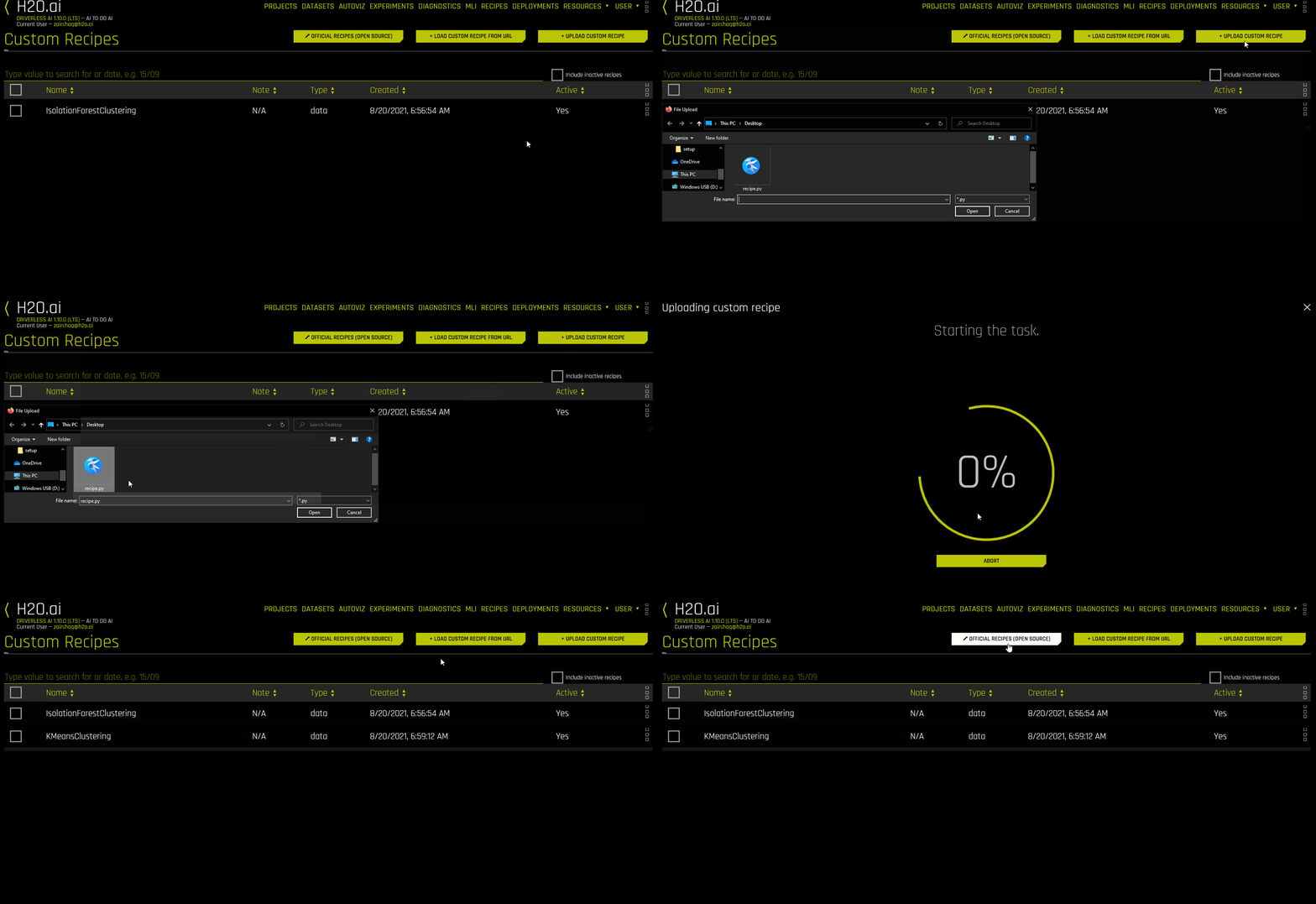
Managing Recipes
Two distinct views are available on this page:
List view: This view displays all available custom recipes. Only active recipes are listed by default, but deactivated recipes can also be viewed. For more information, see List View.
Detail view: This view lets you edit custom recipe code in Driverless AI and save the edited code. For more information, see Detail View.
List View
The following is a list of actions that can be taken from the recipe list view:
View deactivated recipes by selecting Include Inactive Recipes.
Deactivate a recipe by selecting it and clicking Deactivate \(x\) Item(s). You can use this option to deactivate multiple recipes at one time. Note that recipes can only be deactivated, not deleted.
Create or edit a note for a recipe to keep track of its functionality.
Search and sort recipes. Note that if enough recipes are uploaded, they are listed on multiple pages.
Select which columns are visible on the list view.

Detail View
The following is a list of actions that can be taken from the recipe detail view:
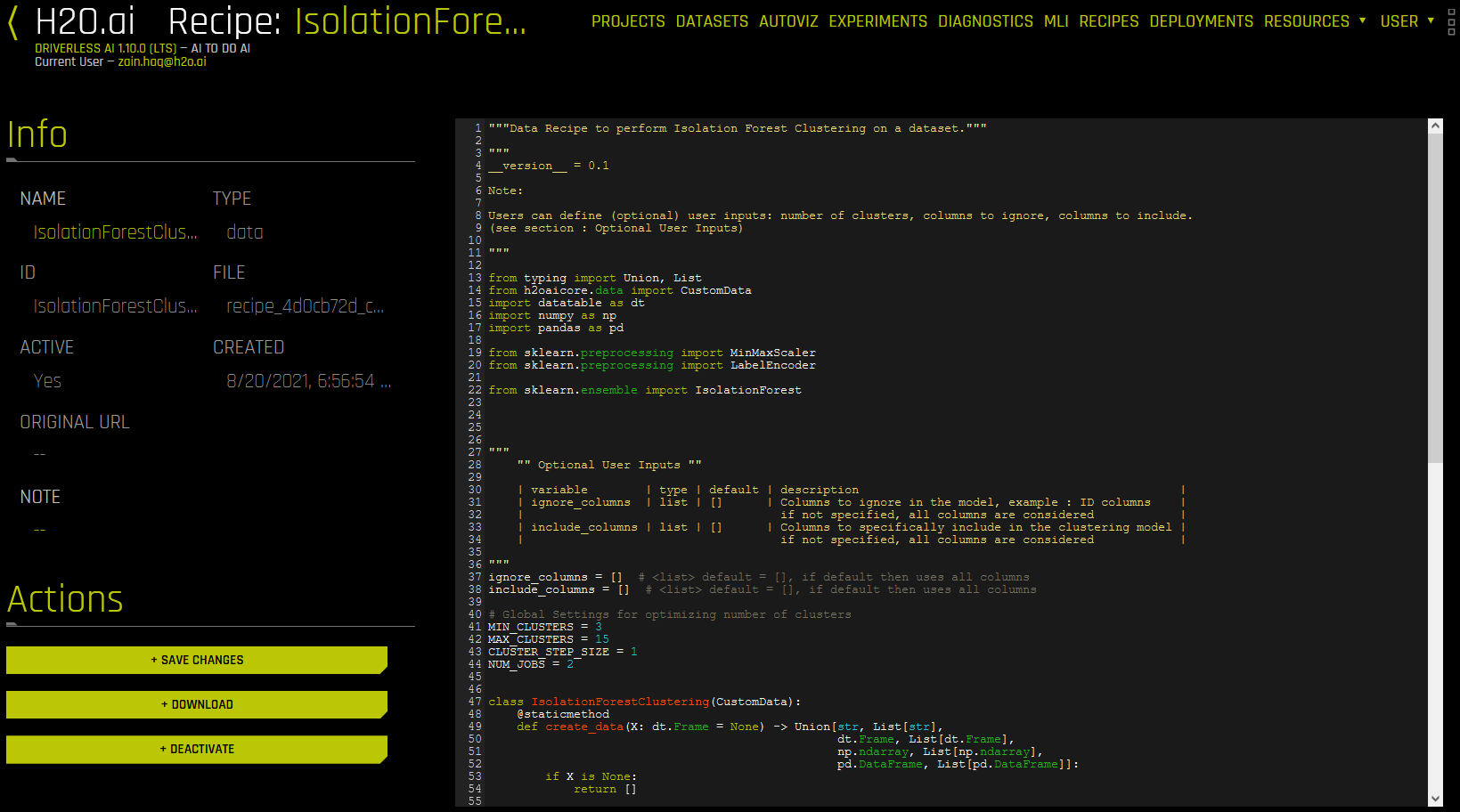
Edit custom recipe code. To save the edited recipe, click the Save Changes button. When a new version of an existing recipe is saved, the old version is automatically deactivated. New versions of existing recipes keep references to the original recipes, letting you keep track of changes throughout multiple versions. You can also download recipe code and deactivate recipes from this view.
View the recipe’s name, type, ID, filename, creation date, and whether the recipe is currently active.
If a recipe was downloaded from an external URL, the link is displayed under Original URL.
Download the recipe by clicking the Download button.
Deactivate the recipe by clicking the Deactivate button. Note that recipes can only be deactivated, not deleted.
Examples
Additional Resources
Custom Recipes FAQ: For answers to common questions about custom recipes.
How to Write a Recipe: A guide for writing your own recipes.
Data Template: A template for creating your own Data recipe.
Model Template: A template for creating your own Model recipe.
Scorer Template: A template for creating your own Scorer recipe.
Transformer Template: A template for creating your own Transformer recipe.